





Description

Your Dubsado build, entered for you.
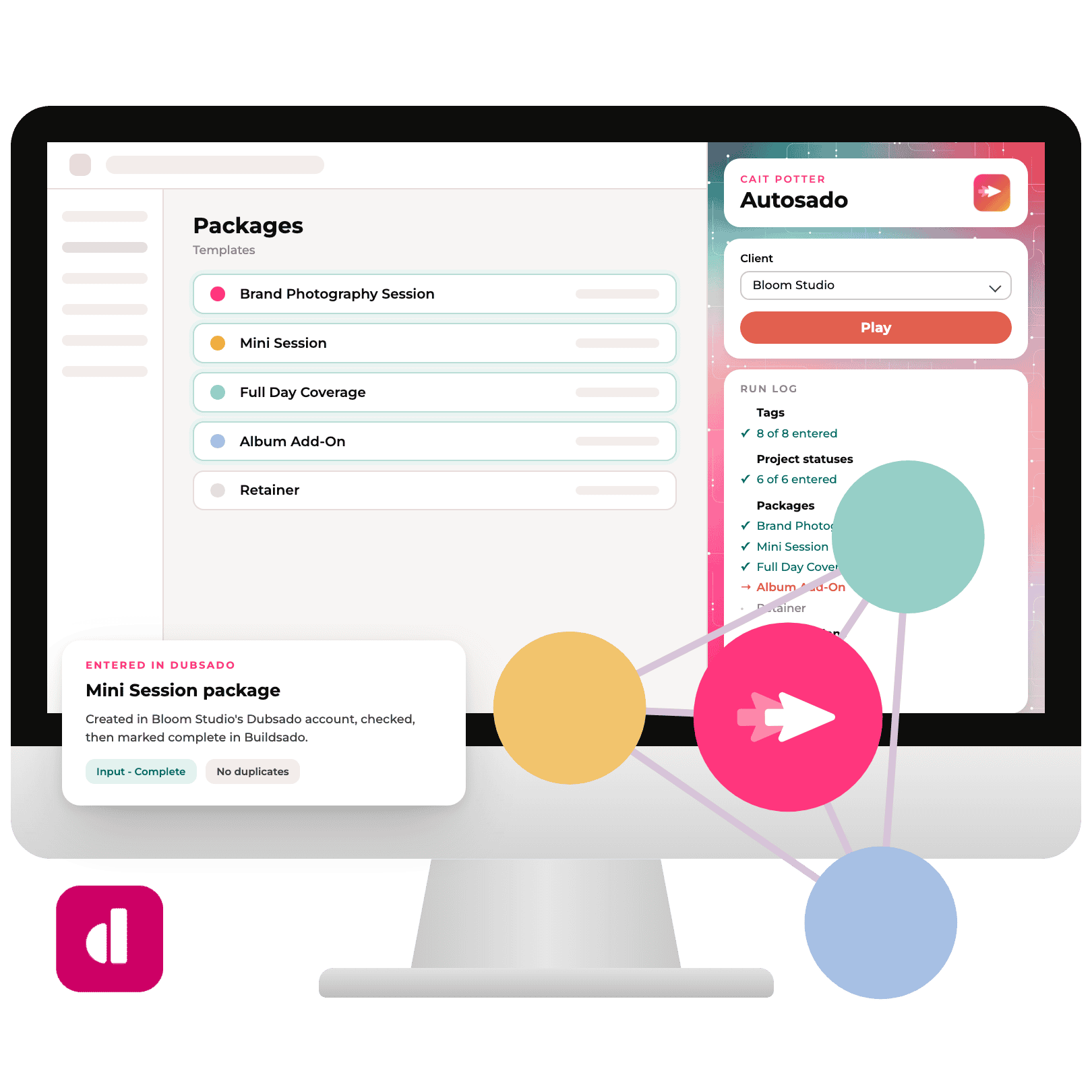
Autosado enters your whole Dubsado build from your workflow builder while you do literally anything else.
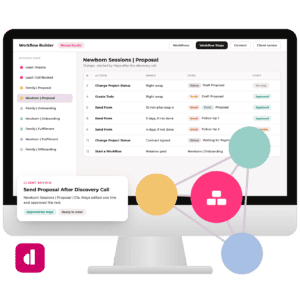
Map the build in your workflow builder, open your client’s Dubsado account and click Play. Autosado enters the build, and Test workflows runs every workflow the way your client would.
What is Autosado?
Autosado is a Chrome extension that enters a Dubsado build into your client’s account for you. You map the build in Buildsado, my workflow builder for Airtable, Google Sheets or Notion, the same way you do now. Autosado runs in a panel beside Dubsado, reads your map, and fills in Dubsado’s own screens item by item, the way you or your VA would by hand.
What it enters
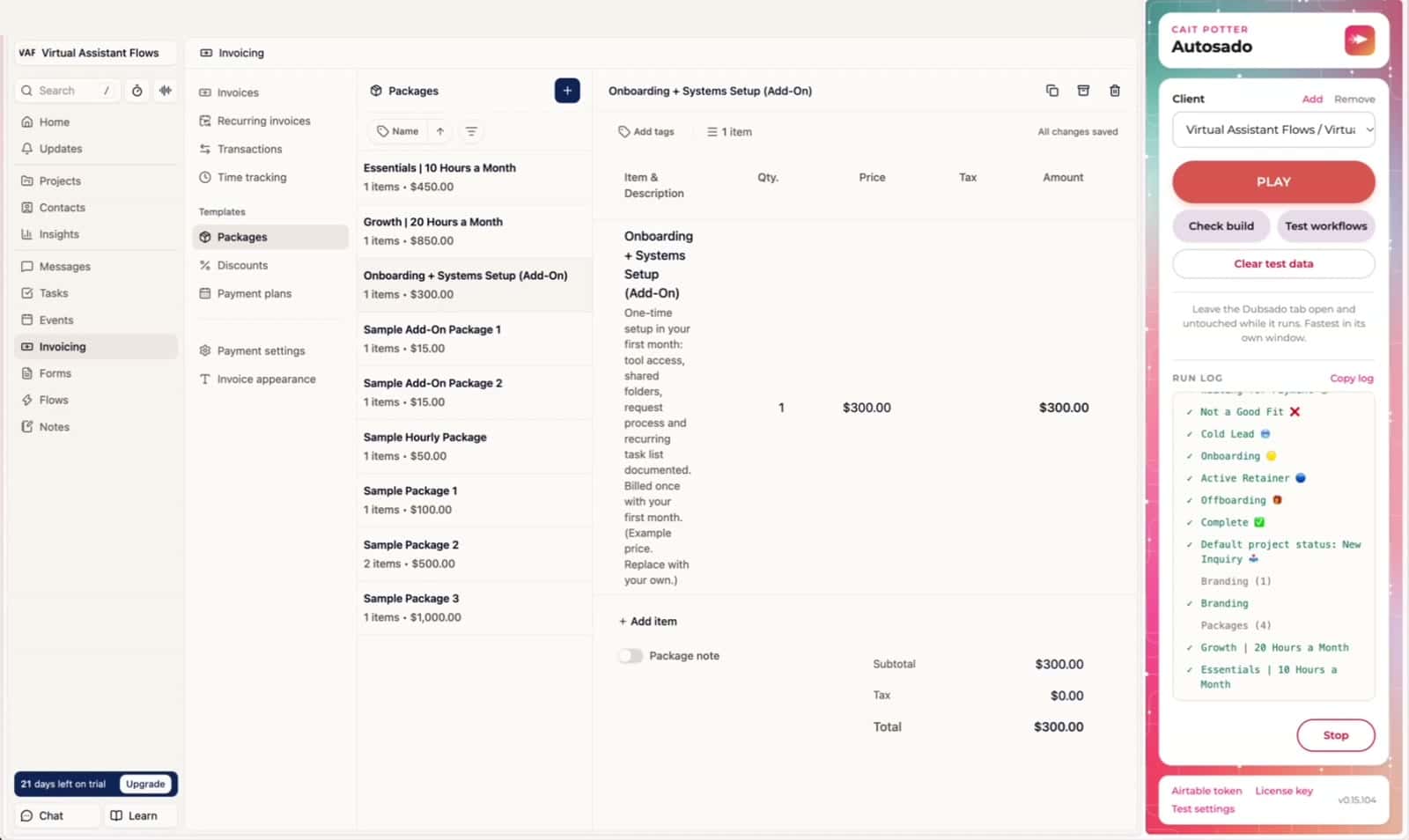
It enters business info, brand color and logo, custom fields, sources, tags, statuses, Chart of Accounts categories, packages, discounts, canned emails, payment plans, forms, schedulers and workflows, in the order Dubsado needs them.
What it checks
It checks every item after entering it. Once the build is in, it runs every workflow the way your client would.
What stays with you
You keep the strategy, the copy in your builder, form design and your client.
Watch Autosado enter a build
This is a real run in a sample client’s Dubsado account: Chart of Accounts, packages, canned emails, payment plans, forms, schedulers and workflows, all entered by Autosado.
What you enter by hand on every build
Every build, you open the same Dubsado screens, click the same buttons and paste in a new client’s content, and only the content changes.
Dubsado can’t copy a build from one account into another, so every new account starts empty. You or your VA enter all of this by hand:
- Custom fields
- Project sources, tags and statuses
- Business info, brand color and active hours
- Chart of Accounts categories
- Packages and discounts
- Canned emails
- Payment plans and their reminders
- Lead captures, questionnaires, proposals, contracts and sub-agreements
- Schedulers and scheduler groups
- Workflows


How Autosado works
- 01
Map
You map the build in your workflow builder, the same way you do now. Finish the copy there first, because Autosado enters exactly what’s in your builder.
- 02
Open
You open your client’s Dubsado account in Chrome with Autosado beside it. Before it writes anything, Autosado checks that you’re in the right Dubsado brand.
- 03
Play
You click Play. Autosado shows you what it’s about to enter and what’s already in the account, and you click Start.
- 04
Go pet the dog
Autosado enters everything in build order, so a package goes in after its Chart of Accounts category and a workflow goes in after its emails, schedulers and payment plans. You don’t have to watch.
- 05
Design, then test
You design the forms. Then you click Test workflows, and Autosado runs every workflow the way your client would. You fix what it flags and hand the build off.
How much time Autosado gives back
My assistant logged her time on 28 done-for-you Dubsado builds in Clockify. Entering a build took her a median of 11.5 hours, and that was with my templates, the workflow builder and the form designs already done. The largest build took 31.2 hours of entry.
About 11.5 hours a build
That’s the median entry time, including typing the questions into forms I had already designed.
About 46 hours a month
At four builds a month, at about 11.5 hours of entry each.
About 150 hours a year
At my pace of about 13 builds a year.
Average entry hours per build
Autosado tests every workflow for you
Testing a build means running every service through its workflow as the client, one project at a time, and checking every email as it goes out. Autosado does ALL of it.
When the build is in, click Test workflows. For each lead capture form, Autosado fills out the form as a test client in a private window, then moves through every step of the workflows it starts. It clicks Force Now on timed steps, checks off to-dos, books the appointments, fills out and signs the proposals and contracts, and logs a test payment on the invoice. Your notification emails go to your own test address while it runs, and nothing goes to your client.
What Autosado testing catches
Before the test starts, Autosado checks every email for placeholder text you forgot to replace. While the test runs, it catches:
- An email with appointment smart fields that no scheduler sends, so those fields would go out blank
- A step that watches for a form that no earlier step sends
- An email that never sent, or went out with the wrong subject
- Smart fields that didn’t fill in on a sent email
- A status, tag, to-do, form or invoice step that didn’t happen on the project
- A workflow that should have started and didn’t
- A workflow that paused or errored partway through
Every problem goes into your builder with the workflow, the step, what should have happened and what did. When you’re done reviewing, Clear test data removes the test projects, their bookings and the test payment.
What you do with the time
Autosado does the clicking. Strategy, form design and your client relationship stay with you, and there’s no entry left to dread and put off until the night before a deadline.
Take more clients
Entry no longer takes up your week, so you have room for another build.
Shorten your timelines
You can promise a faster delivery date when entry no longer takes a full day of your schedule.
Sell VIP Days
You can sell a VIP Day without blocking out a whole week for it.
Keep more of every fee
You stop paying by the hour for data entry, or your VA spends those hours on work that needs a person.
A look at a run
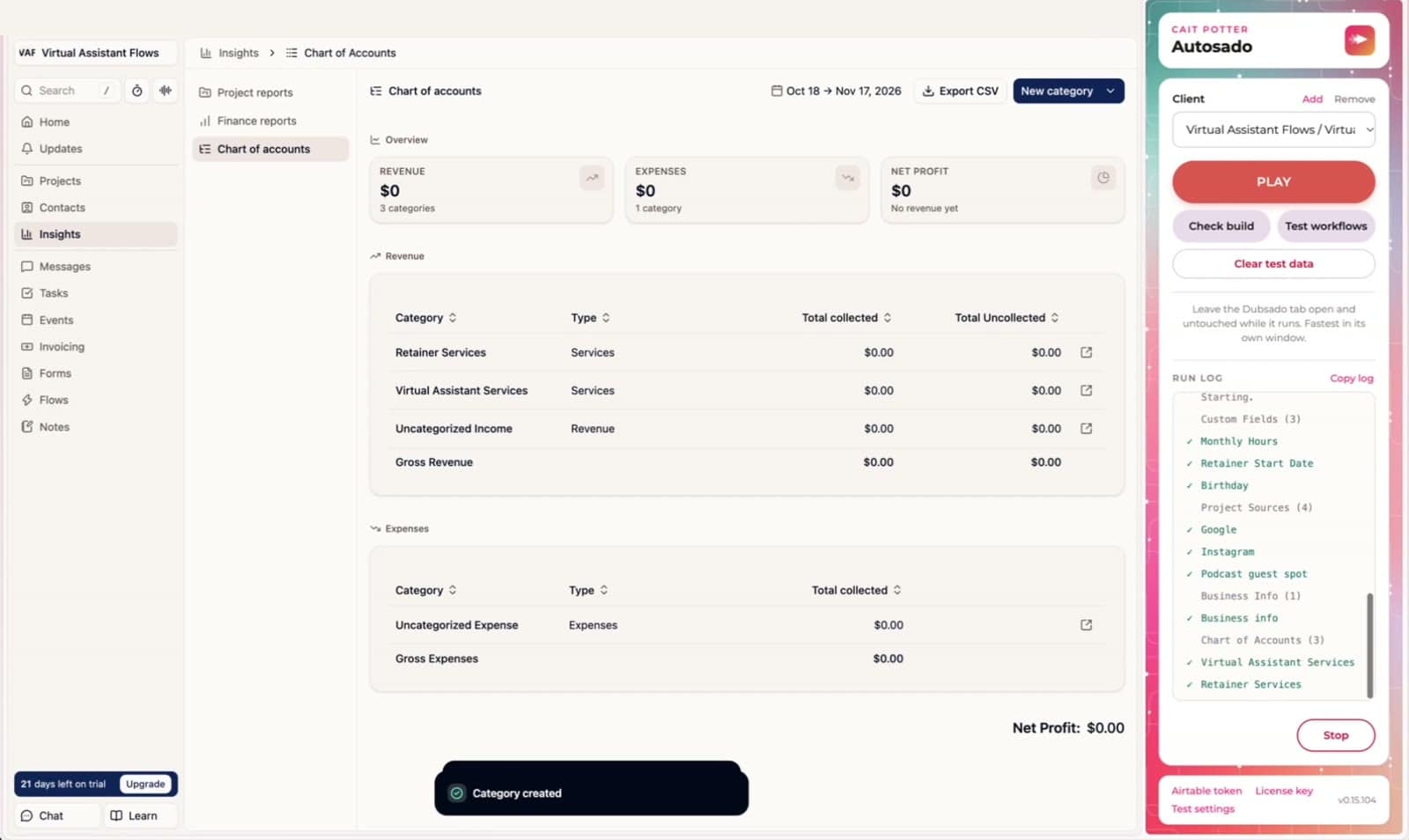
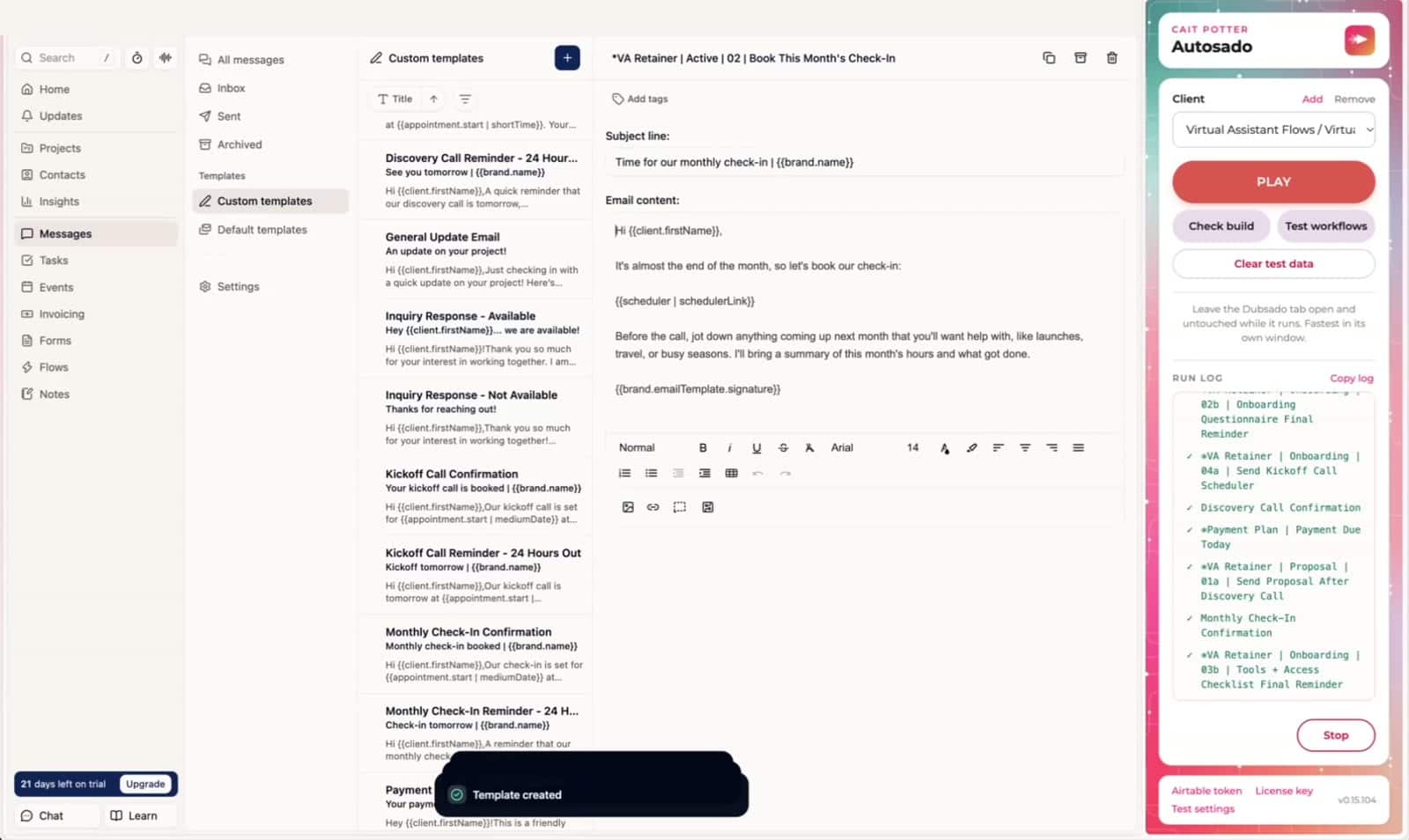
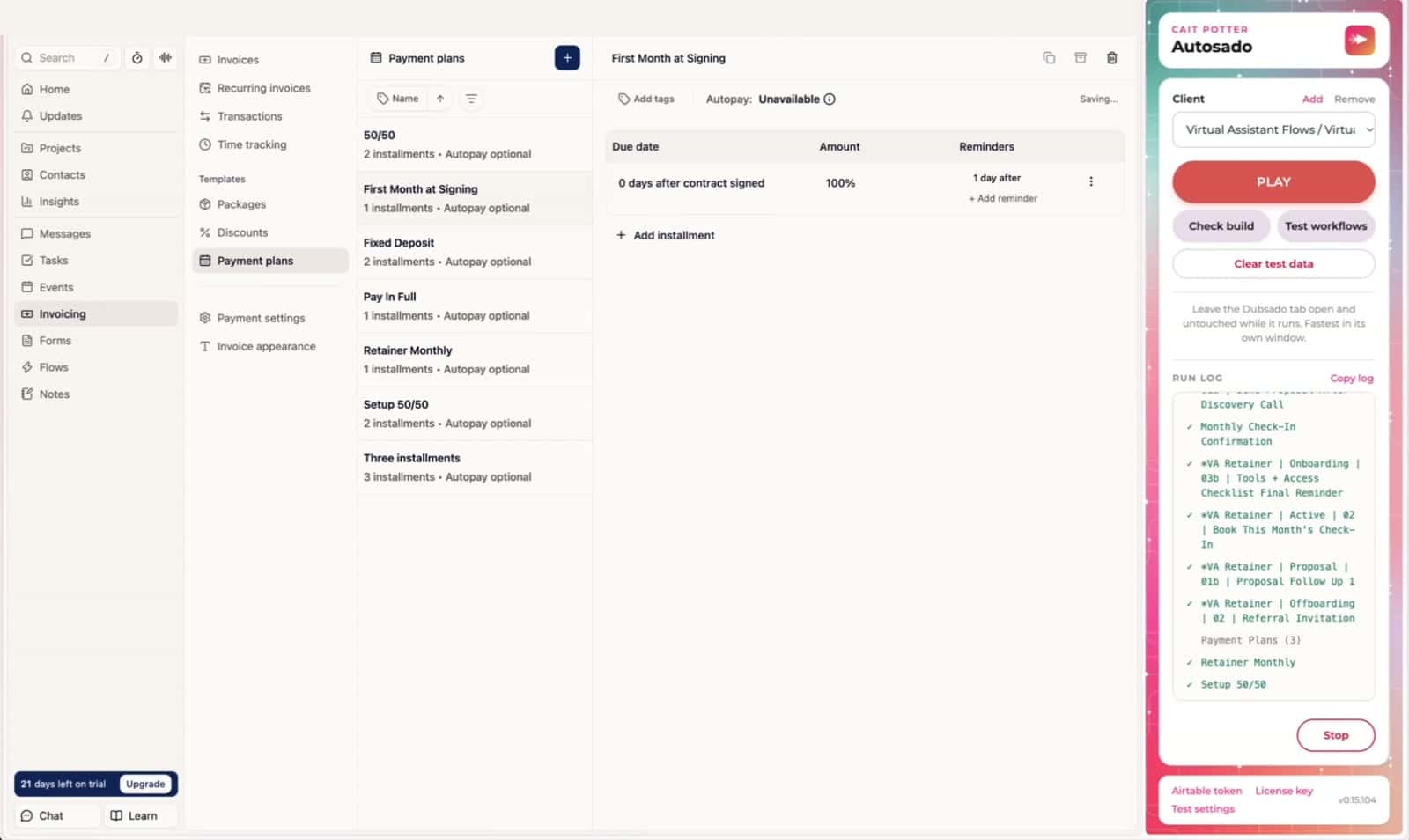
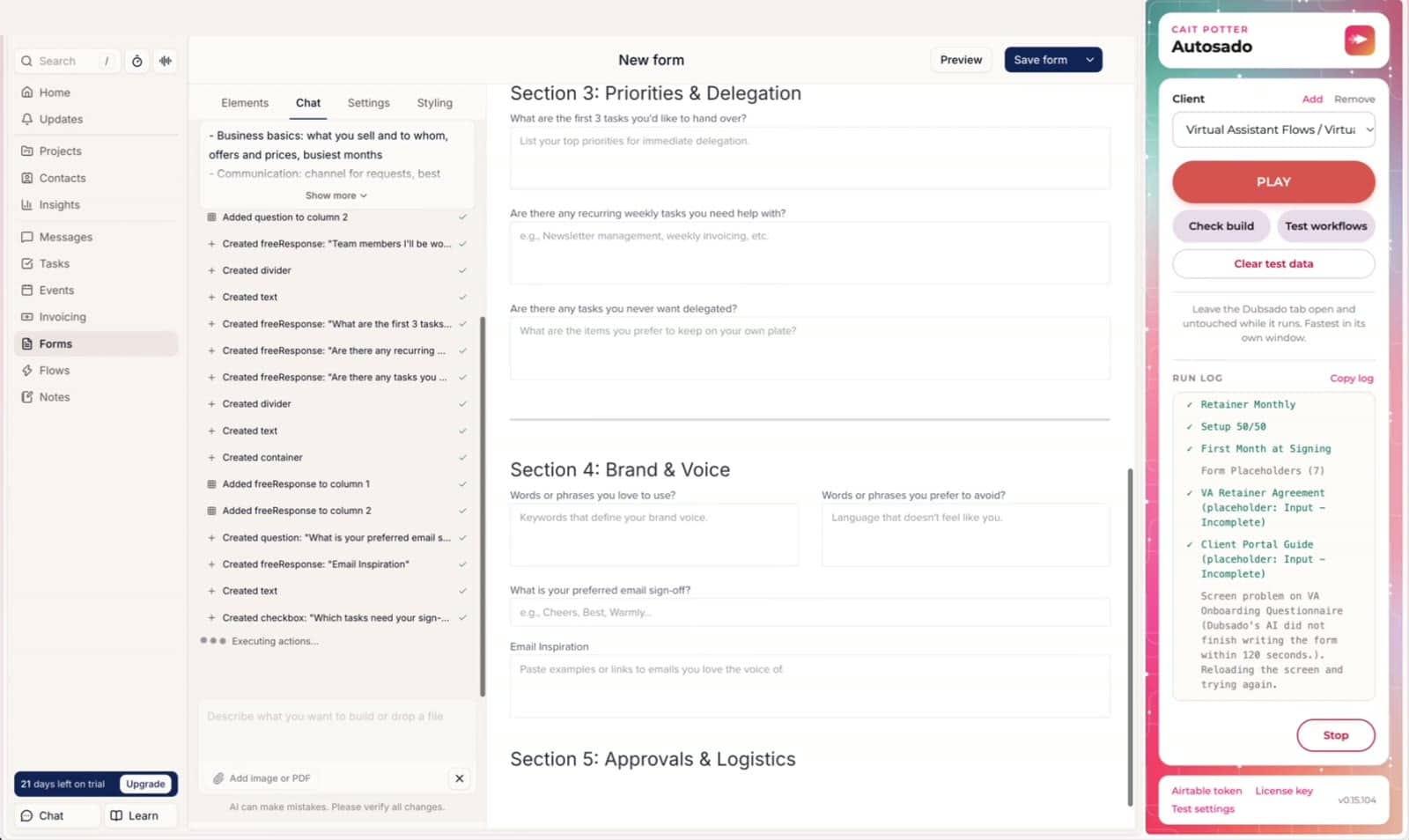
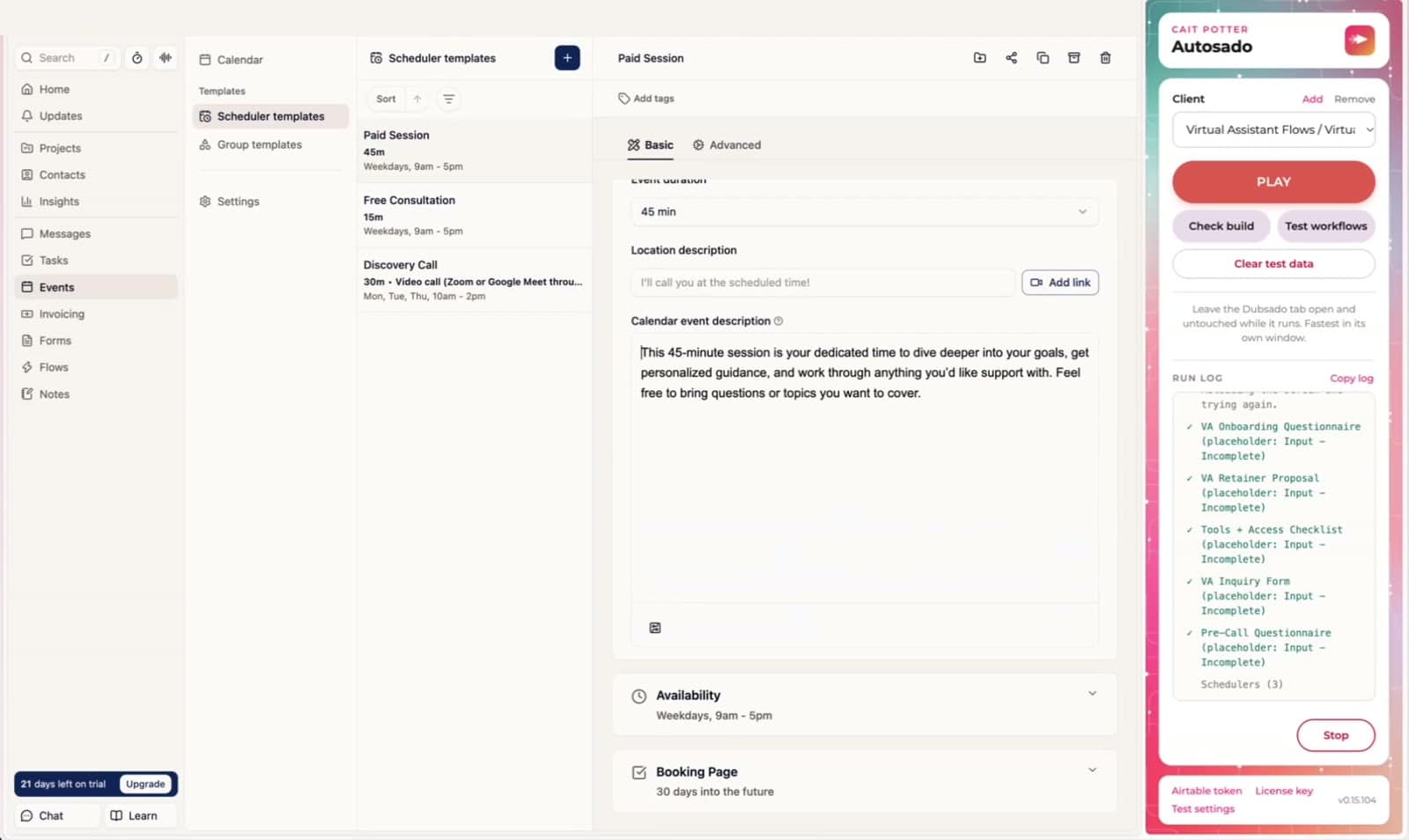
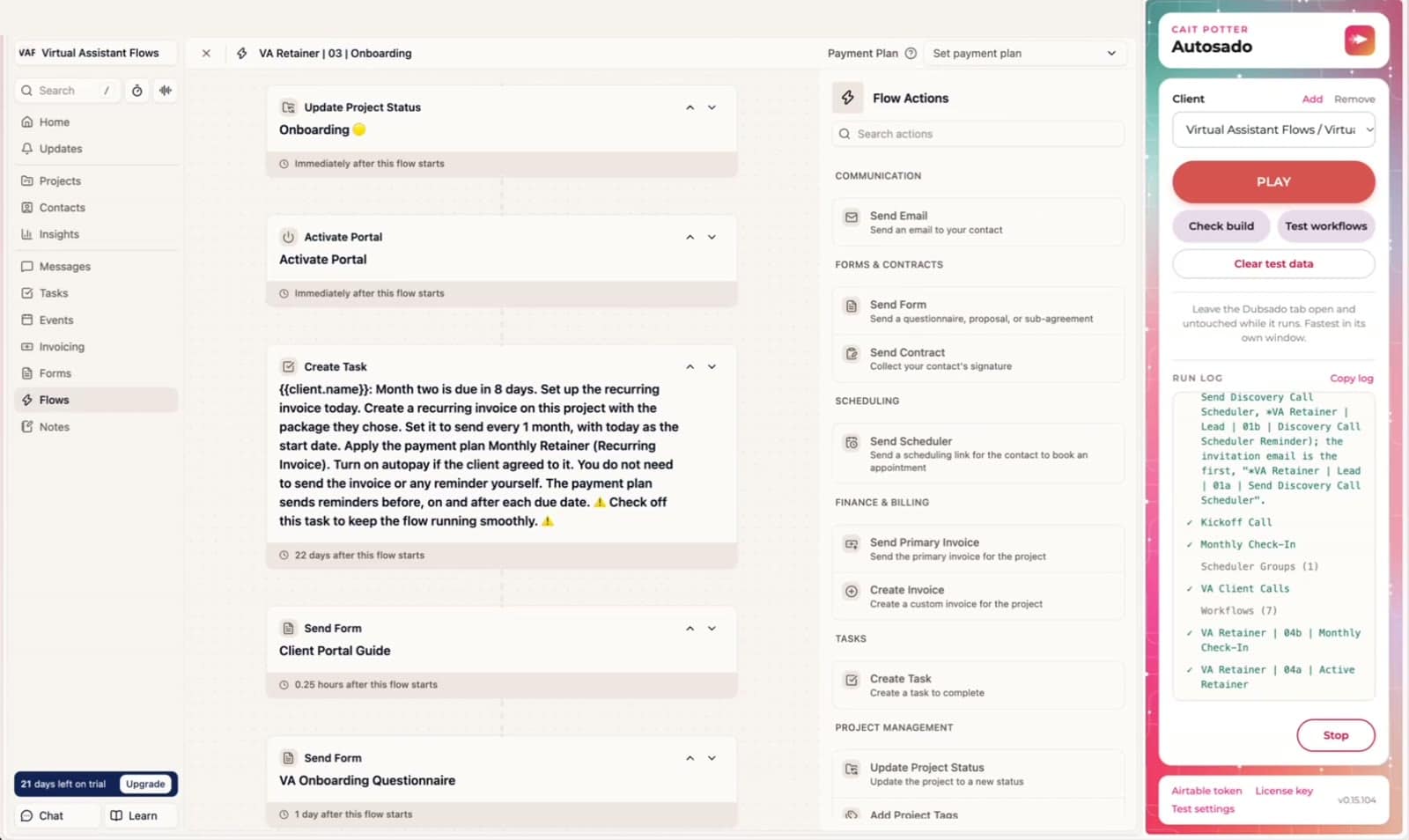
Swipe or use the arrows to see each screen from the run above.
Why Autosado is safe in a client’s account
Autosado works in your own logged-in Dubsado tab and fills in the same screens you do.
Nothing gets entered twice
If an item is already in the account, Autosado leaves it as it is. Turn on Overwrite when you want it updated to match your builder.
It checks every item
After it enters an item, Autosado reads it back from Dubsado to confirm it saved, then marks it complete in your builder. Check build compares the whole account with your builder any time you want a second look.
It flags what it can’t confirm
Anything Autosado can’t enter or confirm gets a note in your builder saying why and what to fix.
Why use Autosado instead of a browser agent
AI browser agents like Claude in Chrome can click through Dubsado for you too. Here’s how Autosado is different:
It’s faster
An agent stops to look at the screen and decide before every click. Autosado already knows every Dubsado screen, so it enters a canned email in about 11 seconds.
It enters your copy word for word
An agent reads your copy and types it in again, and it can reword, shorten or skip a line along the way. Autosado copies every field from your builder exactly as you wrote it.
It enters every build the same way
An agent decides each click by looking at the screen, so two runs of the same build can go differently. Autosado enters every item the same way, in Dubsado’s build order, for every client.
Your client’s account stays private
To decide each click, an agent sends what’s on the screen to the AI company, and those screens show your client’s business. Autosado works inside your browser, and what it reads from Dubsado goes only into your builder.
No usage limits
A full build is a long agent run, and long runs use up your AI plan’s usage. Autosado is a one-time purchase, and you can run it on as many builds as you want.
Works with your workflow builder
Autosado enters what you mapped, so it needs one of my workflow builders, in Airtable, Google Sheets or Notion. It works in Dubsado 3.0 accounts.
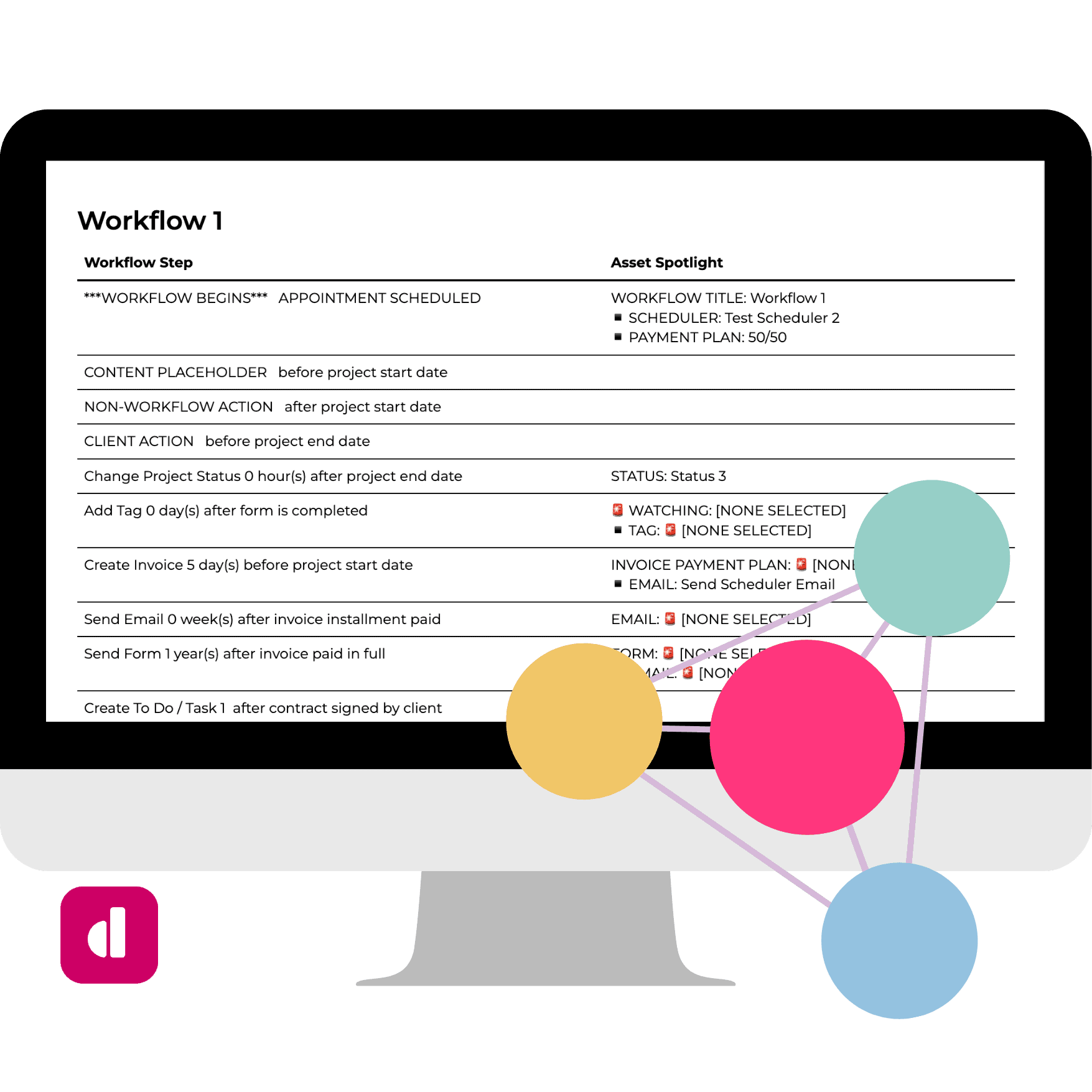
Buildsado: Airtable Workflow Builder
Connect it once with an Airtable personal access token, and every client base you share with that token shows up in Autosado.
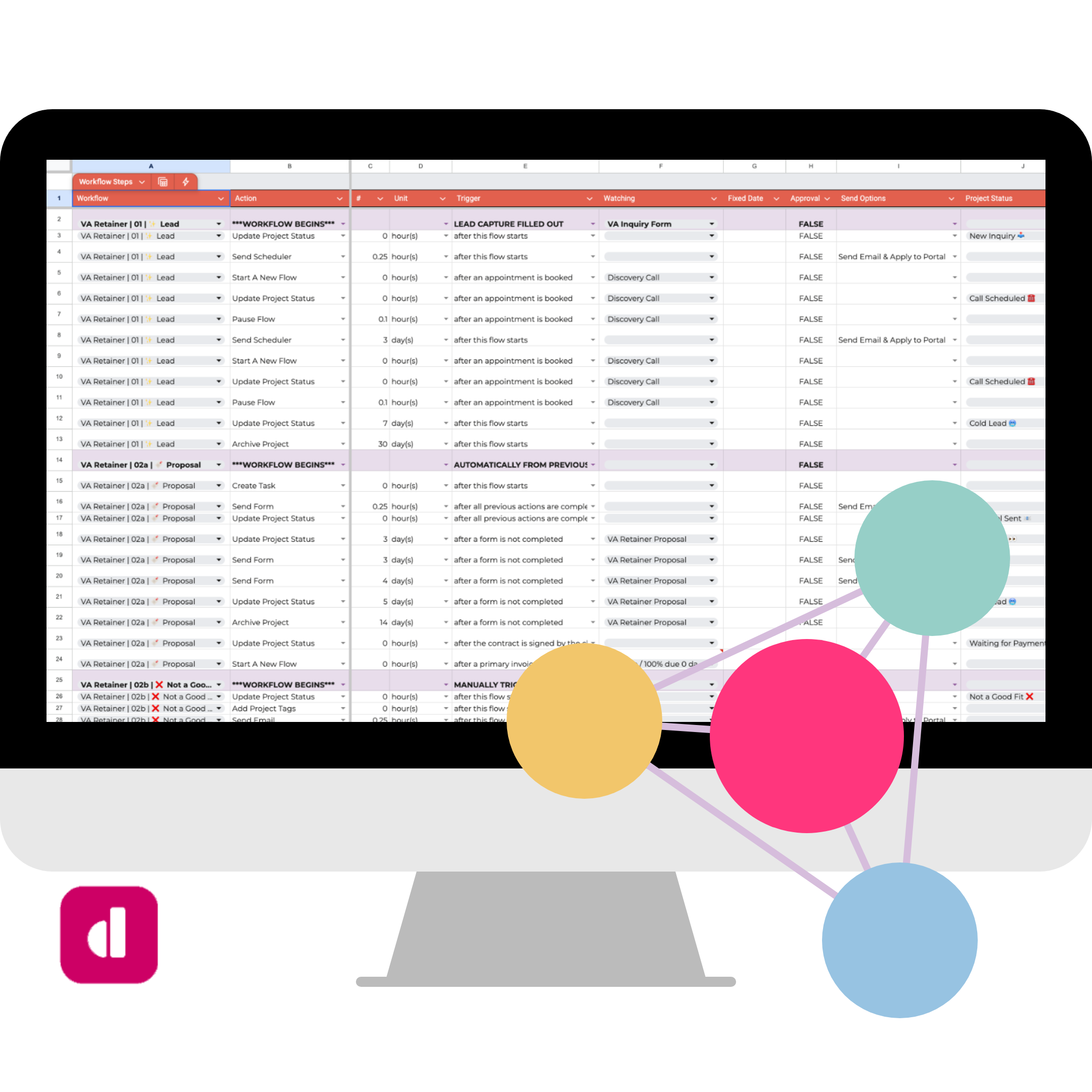
Buildsado: Google Sheets Workflow Builder
Each client’s sheet has its own Autosado link. Paste it into Autosado when you add the client, with no sign-in needed.
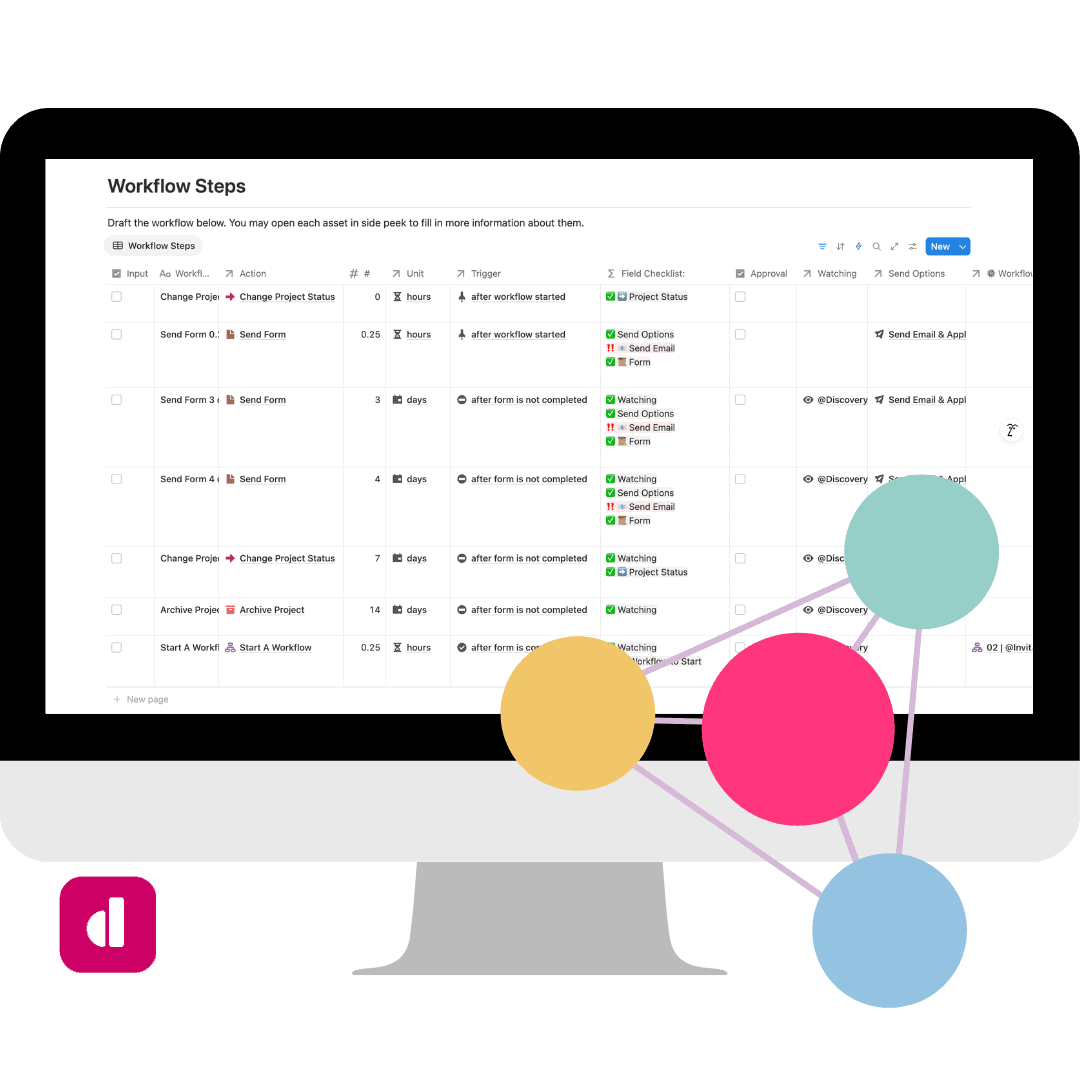
Buildsado: Notion Workflow Builder
Paste your own Notion connection’s secret the first time you add a client, then the link to each client’s page in your Setup OS.

Who Autosado is for
It’s for you if you:
- Do done-for-you Dubsado setups and map them in Buildsado, in Airtable, Google Sheets or Notion
- Pay a VA or assistant to do entry, or do it yourself at 11pm the night before a deadline
- Want to take more clients, shorten your timelines or sell VIP Days
- Love the strategy and dread the clicking
It’s not for you if you:
- Find 30 rounds of Cmd+A, Cmd+C, Cmd+V deeply relaxing
- Would rather pay someone by the hour to do what a button does
- Are worried about saving too much time
- Edit copy while you enter it. Autosado enters what’s final in your builder, so the editing has to happen first.
- Don’t own a Buildsado workflow builder. Autosado needs one of them to work.
Questions
Is this AI?
No. There’s nothing to train or prompt. Autosado follows your map item by item, the same way every time, and enters exactly what you wrote.
Does it do forms?
Yes. Contracts go in word for word, from your builder or from a file you attach, with your placeholders swapped for Dubsado smart fields. Lead captures, proposals and questionnaires are drafted by Dubsado’s form generator from your form notes, and Autosado flags each one for you to review. It sets each form’s settings, and on lead captures it sets the default workflow and copies the public link and embed code back into your builder. The design is still yours.
Does my client see anything?
Autosado creates templates and settings in the account, the same things you create during a build. It doesn’t send anything to your client. Test workflows sends its emails to your test addresses.
Do I still need to check the build?
Yes, and Autosado does most of the checking for you. Check build compares the account with your builder, and Test workflows runs every workflow the way your client would. Review what it flags before your client uses the account.
What happens when Dubsado changes its screens?
You get every update for life, so Autosado keeps up with Dubsado.
How many clients can I use it for?
As many as you want. One license is for one person and works in two browsers.
Is Autosado made by Dubsado?
No, I made it. Autosado runs in your own logged-in Dubsado tab and fills in the same screens you would. It never stores or sends your Dubsado password.
What do I need to run it?
Chrome on a computer, your client’s Dubsado 3.0 account, and one of three connections: an Airtable personal access token from your own Airtable account for the Airtable builder, the Autosado link from your client’s sheet for the Google Sheets builder, or your own Notion connection’s secret for the Notion builder. Autosado keeps them only in your browser. If your window is narrow, Autosado zooms the Dubsado tab out so Dubsado shows its full layout. Some password manager extensions, like LastPass, stop Autosado from working while its tab is in the background, so turn yours off during a run.
Terms of use: Dubsado changes
Autosado fills in Dubsado’s screens as they are when you buy it. Dubsado can change its screens at any time, and a change can stop part of Autosado from working until an update is out.
By purchasing Autosado, you acknowledge and accept that:
- You need Buildsado: Airtable Workflow Builder, Buildsado: Google Sheets Workflow Builder or Buildsado: Notion Workflow Builder, and access to your client’s Dubsado account, to use it.
- No partial or full refunds will be issued if changes made by Dubsado affect how Autosado works.
Get Autosado
- One-time purchase
- Works with the Airtable, Google Sheets and Notion workflow builders
- Enters everything except form design
- Tests every workflow for you
- Unlimited clients
- Lifetime updates when Dubsado changes its screens
This is a digital product, and all sales are final.













Reviews
There are no reviews yet.