








The Dubsado client portal is the one place your client can log in and find everything tied to their work with you: forms, invoices, appointments, emails and project details. Used well, it cuts down the “can you resend that link?” emails, and it’s often the second thing a client sees from your business after your website. Left on the defaults, it looks like software.
This guide covers what clients see in the portal, how to brand it in Dubsado 3.0, how to share and embed it, and the setup mistakes that confuse clients. Everything here is checked against Dubsado’s 3.0 help center as of October 2026.
Do you need a client portal?
Portals are optional, and Dubsado says so plainly. A portal makes sense if your clients want one place to find everything, if you send a lot of forms, if you share outside resources like galleries or folders, or if clients book more than one project with you. Password-protected forms are also only reachable through the portal.
You might skip it if you send very few forms or your clients would rather just click a link in an email. For most of the businesses I build for, the answer is yes, because a client who can find their own invoice doesn’t have to email you for it.
For the Sewing + Fitting Mentor summer camps, the portal gives parents one place for updates, forms and invoices.
What your clients see in the portal
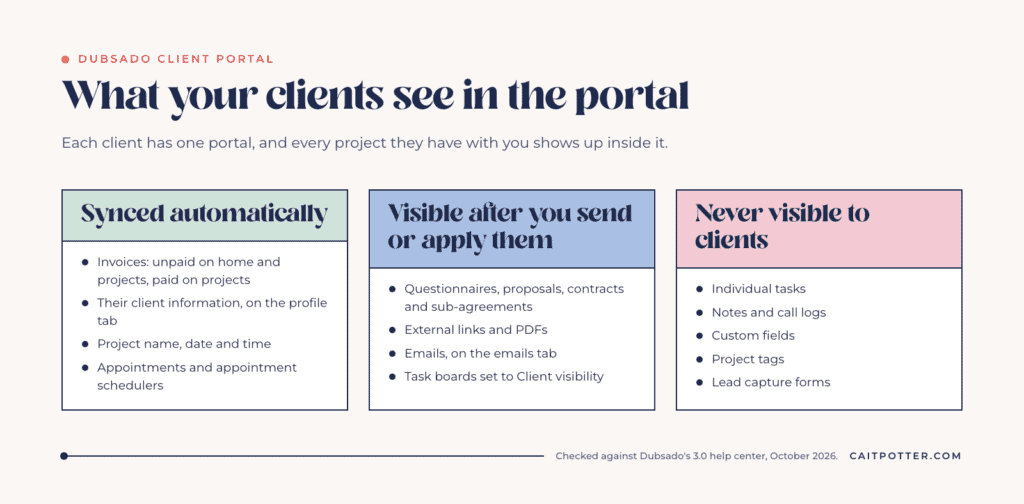
Each client has one portal, and every project they have with you shows up inside it. Some things sync automatically, some appear only after you send them, and some never appear at all.
Synced automatically:
- Invoices: unpaid invoices on the home and projects tabs, paid invoices on the projects tab
- Their client information, on the profile tab
- Project name, date and time
- Appointments and appointment schedulers
Visible after you send or apply them:
- Questionnaires, proposals, contracts and sub-agreements
- External links and PDFs
- Emails, on the emails tab
- Task boards set to Client visibility
Never visible to clients: individual tasks, notes and call logs, custom fields, project tags and lead capture forms.
Two of those deserve a warning. First, sharing a task board is all or nothing. If you set a board’s visibility to Client, the client sees every task on it, and anyone with portal access can edit it. Second, deleting something from the project removes it from the portal too.
Branding the portal in Dubsado 3.0
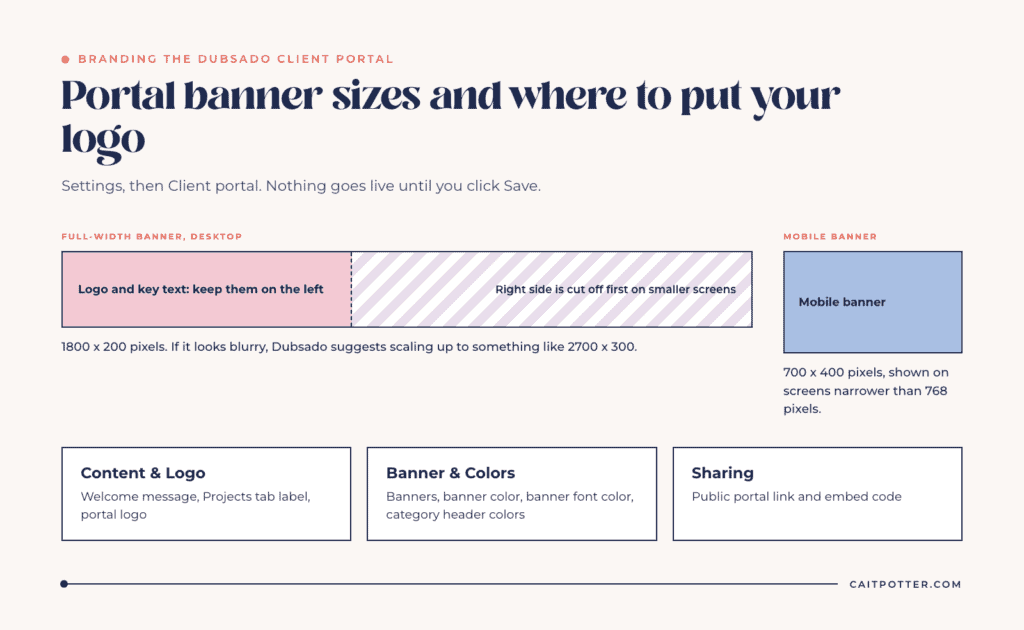
Portal branding lives in Settings, then Client portal, in three cards: Content & Logo, Banner & Colors, and Sharing. Nothing goes live until you click Save.
Content and logo
- Welcome message: the text at the top of the portal, over the banner. If you clear it, clients see Dubsado’s default instead.
- Projects tab label: rename “Projects” to whatever your clients would call it, like “Sessions” or “Your events.”
- Portal logo: you can upload a logo that’s different from your main Dubsado logo, and hide the logo with a toggle.
Banner and colors
- Full-width banner: 1800 x 200 pixels for desktop.
- Mobile banner: 700 x 400 pixels, shown on screens narrower than 768 pixels.
- Banner color and banner font color: used when there’s no banner image. The font color also styles the welcome message and the Sign out text.
- Category header colors: the headers clients see, like Unread Emails, Incomplete Forms and Open Invoices.
Banners stay anchored to the left as screens get smaller, so the right side gets cut off first. Keep your logo and key text on the left of the image. If yours looks blurry, Dubsado suggests scaling up to something like 2700 x 300.
Client-specific banners
You can override the default banner for one client from the Portal card on their contact or project. That client gets a single banner image, and the mobile banner only exists on the workspace-wide default.
What you can’t customize
You can’t add HTML or CSS to the portal, and you can’t design the login screen separately. The login screen uses the logo and brand color from your general styling settings, so set those first. The portal’s look comes from the settings above and the forms you put inside it, which is why branded forms matter so much.
Activating and sharing the portal
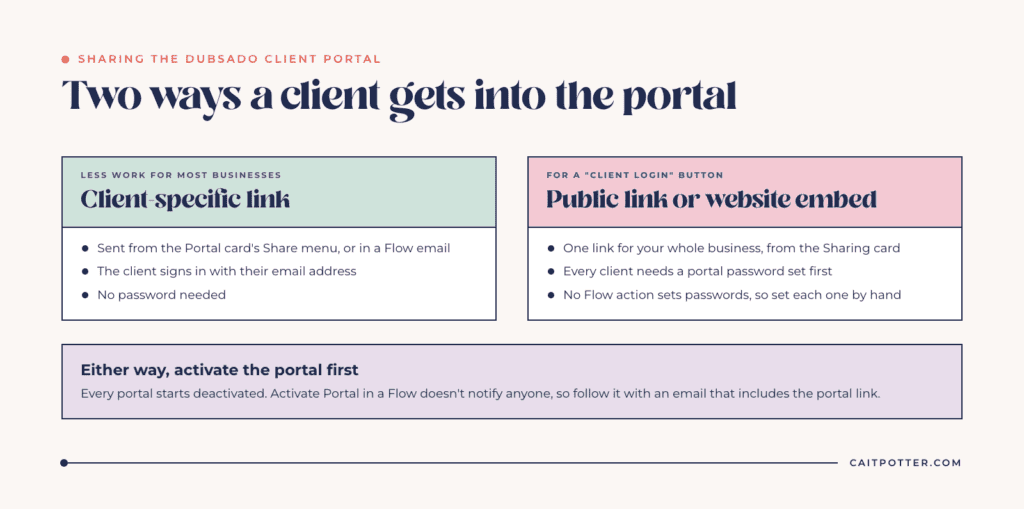
Every portal starts deactivated. Turn it on per client from the Portal card on their contact or project, or with the Activate Portal action in a Flow. Activate Portal doesn’t send anything, so follow it with an email that includes the portal link.
There are two ways a client gets in:
- Their client-specific link. Sent from the Portal card’s Share menu, or included in a Flow email. The client signs in with their email address and doesn’t need a password.
- Your public portal link. One link for your whole business, found in the Sharing card. Every client who uses it needs a portal password set first, or they’ll see a login error. No Flow action sets passwords, so this means setting one by hand for each client.
For most businesses, the client-specific link is less work. Use the public link when you want a “Client login” button on your website.
Embedding the portal on your website
The Sharing card also has an embed code, which puts the portal login on a page of your own site, the same way you’d embed a form. The same rule applies: anyone logging in through the embed needs a password set.
Projects and outside links
Because one portal covers every project a client has with you, name your projects so the client can tell them apart, like “Smith Wedding” and “Smith Anniversary Session” instead of two projects with the same name.
To share something that lives outside Dubsado, like a gallery or a shared folder, add it to the project as an external link. In the project’s Forms tab, click +, choose to create a new form, then choose One-time link. Give it a title and URL, then use Share, then Apply to portal. The link appears in that project’s documents in the portal. It can’t go on the portal’s home page.
Using the portal with your Flows
The portal works best when your Flows use it. Send Form, Send Contract and Send Scheduler each have an “Apply to portal” option that adds the item to the portal without sending an email. Each Send Form email can only carry one form, so if you want to hand a client three forms at once, apply all three to the portal and send one email with the portal link. That’s one email for your client instead of three.
If you’re building those Flows now, my guide to what changed in Dubsado 3.0 covers the rename from workflows to Flows and what to re-test.
Mistakes that confuse clients
- Sharing the public link without setting passwords. The client sees “A password has not been created yet” and emails you.
- An email mismatch. The email a client signs in with has to match their contact record exactly, or they’ll see “Client not found.”
- Forgetting to activate the portal. Every portal starts deactivated, so a client with a link and no active portal can’t get in.
- Sending PDFs instead of forms. A PDF in the portal is a file they have to download, while a form is something they can complete right there. I explain why I avoid them in don’t use PDFs in your client experience.
- Sharing an internal task board. Clients see every task on it and can edit them.
- Branding the portal but not the forms inside it. The portal frames your forms. If they’re still on default styling, that’s what clients notice.
Get your portal designed
If you want your portal and forms to look like your brand, System Design is my design-only service. It covers a branded proposal, lead capture form and contract, plus a branded client portal and email signature. If you need the whole system built, including the Flows that activate and fill the portal, start with my Dubsado setup services.
Frequently asked questions
Do clients need a password for the Dubsado client portal?
Only if they log in through your public portal link or the embed on your website. If you send their client-specific link, they sign in with just their email address.
Can I customize the Dubsado client portal with code?
No. Custom HTML and CSS aren’t available for the portal. You can set the welcome message, Projects tab label, logo, banners and colors in Settings, then Client portal.
Can I embed the Dubsado client portal on my website?
Yes. Copy the embed code from the Sharing card in Settings, then Client portal. Clients logging in through the embed need a portal password set.
How do I share a gallery link in the client portal?
Add it to the project as an external link (a one-time link in the project’s Forms tab), then apply it to the portal. It shows in that project’s documents.
Does each project get its own portal?
No. Each client has one portal, and all of their projects appear in it. You can set a custom banner per client, but not per project.
Ongoing COO-level support to maintain and refine your systems as the business grows so operations stay steady and decisions stop piling up on your plate.

Support
Custom Dubsado, Airtable, and Moxie systems designed for capacity, not survival. Built around how your business actually runs so growth does not create more chaos.

Systems
Map, audit, or optimize the system that is slowing your business down. Workflows, offers, tech stacks, or the process that keeps living in your head instead of your business.

Strategy
services
These are.
Busy isn't a business plan.


In this power-packed session, I show you how to connect Airtable + your CRM for smarter tracking, simplified workflows, and insights that actually move your business forward.
From Guesswork to Growth with Airtable


A step-by-step guide to setting up your new Dubsado account, area by area, so your trial ends with a system you can actually use.
21 Ways to Max Out Your Dubsado Free Trial

Hot Seat, Hot Takes, Hot Damn.

Free masterclasses that show you exactly how scalable businesses are built.




© 0000 Cait Potter Creative, LLC
Privacy Statement and Terms & Conditions