












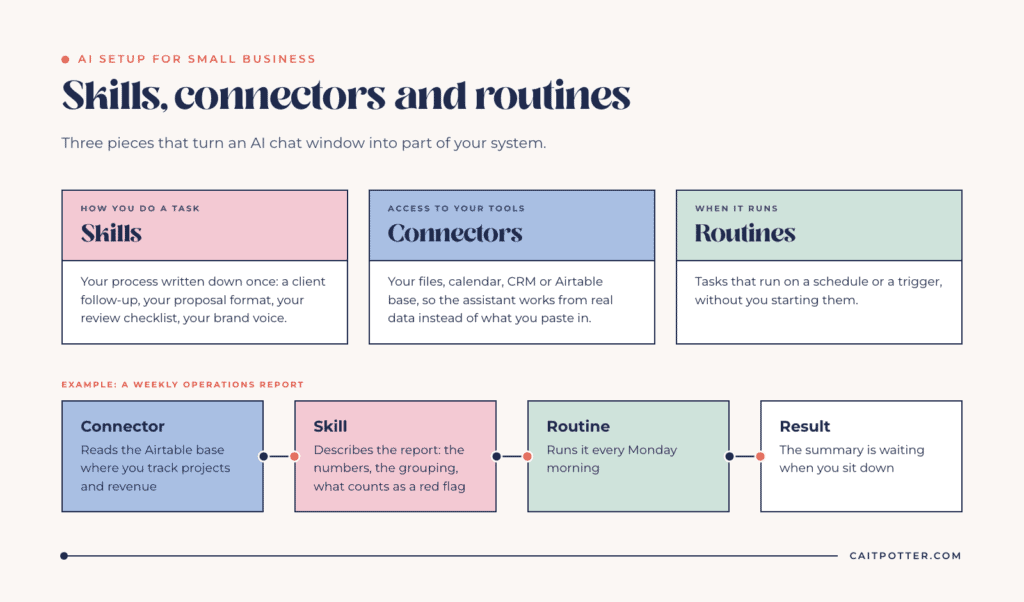
Most small business owners use AI as a chat window. You paste something in, copy something out, and re-explain your business every single time. That’s useful, but it leaves most of the value on the table. A real AI setup for small business owners comes down to three pieces: skills that teach the assistant how you do a task, connectors that give it access to your actual tools and data, and routines that run tasks without you starting them.
I set these up for clients in Claude and ChatGPT as part of my custom systems work. Here’s what each piece is, what to set up first, and where the limits are.
The three building blocks
Skills
Anthropic describes skills as written instructions, optionally with scripts and reference files, that Claude loads when the task you give it calls for them. In plain terms, a skill is your process written down once: how you write a client follow-up, your proposal format, your review checklist, or your brand voice. Instead of pasting the same instructions into every conversation, you write them once and Claude uses them whenever the task matches.
Connectors
Connectors give an AI assistant access to the tools you already use, so it works from your real data instead of whatever you remember to paste in. Anthropic’s definition is a connection to an external service, such as your files, calendar, or project tracker, so Claude can read from it and act in it. ChatGPT has a similar feature it now calls apps.
With the right connectors in place, you can ask which clients haven’t returned their questionnaire and get an answer pulled from your system instead of your memory.
Routines
Routines are tasks that run on their own, on a schedule or when something triggers them. In Claude, routines are a Claude Code feature, currently in research preview and available on Pro, Max, Team, and Enterprise plans. They run on Anthropic’s cloud, so they keep working when your laptop is closed. ChatGPT offers scheduled tasks that can run one time or on a recurring basis.
For a small business, that might look like a Monday summary of open projects, a weekly report pulled from your Airtable base, or a first-draft follow-up waiting for your review.
Anthropic also offers plugins, which package skills and connectors together so they can be installed and shared as one unit. That’s useful once you have several pieces that belong together, like everything your team needs for one tool.
What to set up first
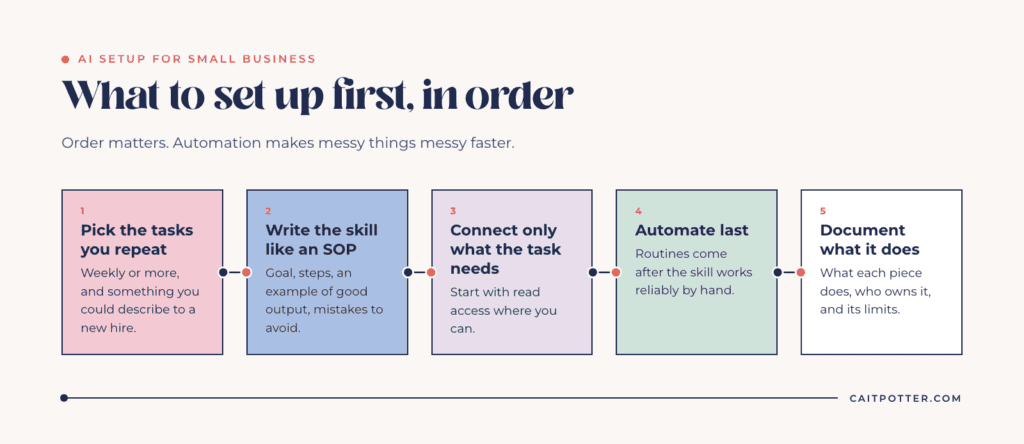
Order matters here. This is how I approach it.
1. Pick the tasks you repeat
List the things you explain, write, or check over and over: weekly reporting, client emails, proposal drafts, meeting summaries, repurposing content. The best first skill is a task you do at least weekly and could describe to a new hire.
2. Write the skill like an SOP
A skill is only as good as the instructions in it. Write it the way you’d train a person: the goal, the steps, an example of good output, and the mistakes to avoid. If you already have SOPs, you’re halfway there. If your process is still on sticky notes, writing skills is a good reason to finally get it out of your head. I wrote more about that in why Post-it notes and random fixes hold your business back.
3. Connect only what the task needs
Every connector is access to your business data. Give the assistant the tools a task requires and nothing extra. Start with read access where you can, and add the ability to create or change things only once you trust the output.
4. Automate last
Routines come after the skill and the connectors work reliably when you run them by hand. Automation makes messy things messy faster. If a skill produces inconsistent output while you’re watching, it will produce inconsistent output at 6am on a Monday when you aren’t.
5. Document what it does
Write down what each skill, connector, and routine does, who owns it, and where its limits are. Your team needs to know what the AI is doing on their behalf, and you need to know where to look when a tool changes or an output stops making sense.
What a small business setup can look like
These are examples of how the three pieces work together. Your version depends on your tools and your process.
A weekly operations report
A connector gives the assistant read access to the Airtable base where you track projects and revenue. A skill describes the report: which numbers you care about, how you want them grouped, and what counts as a red flag. A routine runs it every Monday morning, so the summary is waiting when you sit down.
Inquiry follow-up drafts
A skill describes your voice, your offers, and the questions you always answer for new leads. A connector reads the inquiry from your CRM or inbox. The assistant drafts a reply for you to review and send, and you still make the final call on every message.
Meeting notes to next steps
After a client call, a skill turns your notes into a summary and a task list in your format. A connector to your project tool lets the assistant add the tasks where your team already works, instead of in a document nobody opens again.
What AI can’t fix
AI works on top of your systems. If your client data is scattered across five tools and your process is only in your head, an assistant connected to that mess will give you confident answers built on bad information. Clean, structured data in a tool like Airtable or a properly set up CRM is what makes AI useful in the first place.
AI also needs review. Treat its output as a first draft, especially anything that goes to a client. Automating a draft and keeping your own final read is how you get the time savings without handing your client experience to a tool. It’s the same principle I wrote about in Manual ≠ More Personal: automation means everyone gets your best day.
Where this fits in a system build
AI setup is part of my custom systems work. I set up skills, connectors, and routines alongside the systems I build, then document what each one does and where its limits are, so your team can trust it and keep it running.
If you aren’t sure where AI fits in your business yet, start with your process. A map of how work moves through your business shows which tasks repeat, which data is reliable, and which steps need a human, and that’s the list you want before you set up anything.
Frequently asked questions
What’s the difference between a skill and a connector?
A skill teaches the assistant how you do a task, like your proposal format or your review checklist. A connector gives it access to a tool, like your calendar or your Airtable base. Most useful setups use both: the connector supplies the data, and the skill says what to do with it.
Is it safe to connect AI to my business tools?
It can be, with sensible limits. Connect only the tools a task needs, start with read access where possible, and keep a person reviewing anything that goes to a client. Document what each connection can do so nobody is surprised later.
Should I use Claude or ChatGPT?
Both offer ways to save instructions, connect your tools, and schedule tasks. Pick the one your team already uses and will keep using. The setup work, writing down your process and cleaning up your data, pays off either way.
Can AI replace my CRM or project management tool?
No. AI works on top of the tools that store your data. It can read from your CRM, summarize it, and draft from it, but the CRM is still where the records are kept.
Ongoing COO-level support to maintain and refine your systems as the business grows so operations stay steady and decisions stop piling up on your plate.

Support
Custom Dubsado, Airtable, and Moxie systems designed for capacity, not survival. Built around how your business actually runs so growth does not create more chaos.

Systems
Map, audit, or optimize the system that is slowing your business down. Workflows, offers, tech stacks, or the process that keeps living in your head instead of your business.

Strategy
services
These are.
Busy isn't a business plan.


In this power-packed session, I show you how to connect Airtable + your CRM for smarter tracking, simplified workflows, and insights that actually move your business forward.
From Guesswork to Growth with Airtable


A step-by-step guide to setting up your new Dubsado account, area by area, so your trial ends with a system you can actually use.
21 Ways to Max Out Your Dubsado Free Trial

Hot Seat, Hot Takes, Hot Damn.

Free masterclasses that show you exactly how scalable businesses are built.




© 0000 Cait Potter Creative, LLC
Privacy Statement and Terms & Conditions