










Dubsado workflows are why most people buy Dubsado. A workflow, which Dubsado 3.0 now calls a Flow, sends the proposal, waits for the signature, sends the questionnaire, books the call and moves the project along without you having to remember any of it. I’ve been building them as a Dubsado Certified Specialist since 2020. When a Flow breaks every other week, the cause is usually something that got skipped before anyone opened the builder.
This guide covers how Flows work in 3.0: how to plan them, the actions and triggers that matter, the ways a Flow can start, example sequences, the mistakes I see most, and how to test before a client ever sees anything. I checked every feature detail against Dubsado’s 3.0 help center as of October 2026.
What a Dubsado workflow is in 3.0
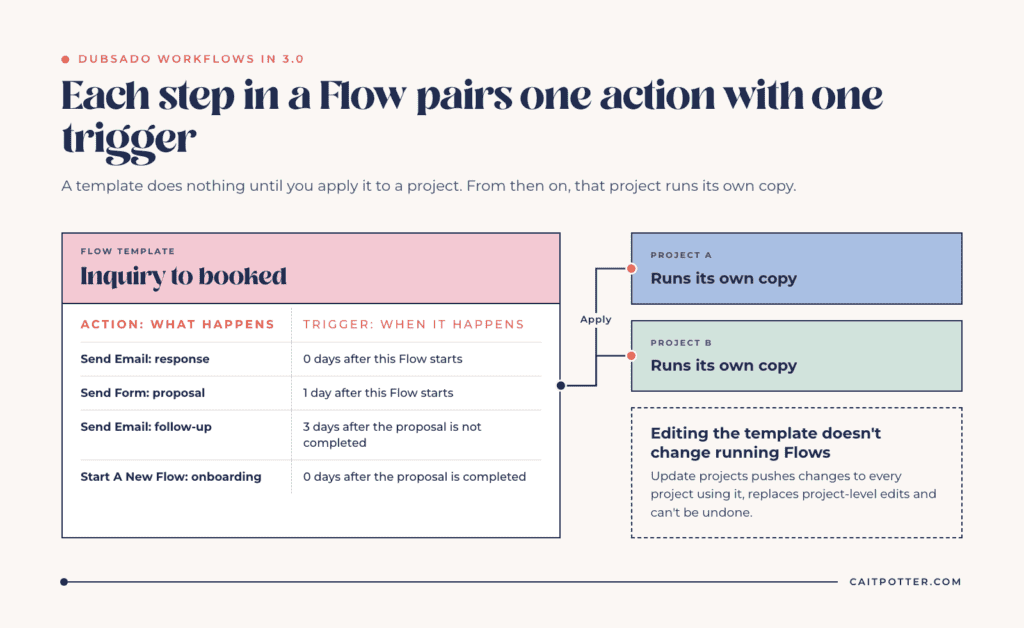
In Dubsado 3.0, workflows are called Flows, and you build them in a node-based editor. The idea hasn’t changed. A Flow template is a saved sequence of steps, and each step pairs one action (what happens) with one trigger (when it happens). A template does nothing until you apply it to a project. From then on, that project runs its own copy.
That last part matters more than people expect. Each project’s Flow is independent, so editing the template doesn’t change Flows that are already running. I come back to this in the mistakes section, because it causes a lot of confusion.
Two more things to know before you build anything:
- Flows are a Premier feature. On the Starter plan, Flows doesn’t appear in the sidebar at all. Public proposals and public schedulers also need Premier.
- “Workflow” and “Flow” are the same feature. Dubsado’s own changelogs still use both words, and so does this post, because “workflow” is what most people search for.
If you built your account in 2.0, read what changed in Dubsado 3.0 first. It covers the rename and what to re-test.
A Flow also doesn’t make decisions for you. Some triggers react to what a client does or doesn’t do, like a form not being completed, but you decide all of that logic up front. You can’t automate a process you don’t understand, so if you don’t know what you want your client to experience, there’s nothing to build yet.
Map your process before you build
Dubsado’s own help center tells you to write out your process before you open the Flow editor, and I agree with it completely. For each service you offer, write down every step from first inquiry to final send-off: what gets sent, what has to happen before it’s sent, how long to wait, and what you do by hand.
I do this in a process mapping session before every build, because each decision you make on paper is one you don’t have to make mid-build, when you’re moving fast and second-guessing triggers. If you’re brand new to the platform, getting started in Dubsado walks through the order I’d set things up in.
Dubsado also recommends running your whole process by hand in a test project before you automate it. That step is worth taking. If a step doesn’t make sense when you do it manually, it won’t make sense when a Flow does it for you.
Build your templates first
A Flow can only point to templates that already exist. You can’t create a new email, form or scheduler from inside the Flow editor. So once your process is mapped, build everything it calls for:
- Email templates for every message the Flow will send
- Forms: your lead capture, proposal, contract, questionnaires and any sub-agreements
- Schedulers and scheduler groups
- Packages and payment plans
- Project statuses and tags you want the Flow to apply
With all of that in place, building the Flow becomes a sequencing job instead of a writing job. Name your templates so you can tell them apart in a dropdown, like “Wedding Planning Questionnaire” instead of “Questionnaire.”
Flow actions: what a Flow can do
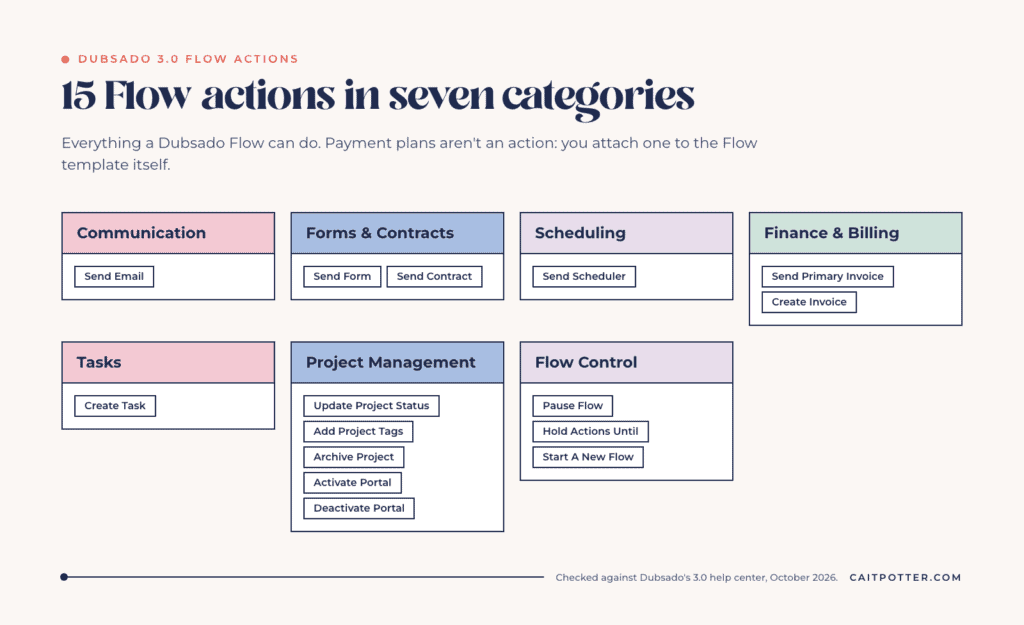
There are 15 actions in seven categories:
- Communication: Send Email
- Forms & Contracts: Send Form, Send Contract
- Scheduling: Send Scheduler
- Finance & Billing: Send Primary Invoice, Create Invoice
- Tasks: Create Task
- Project Management: Update Project Status, Add Project Tags, Archive Project, Activate Portal, Deactivate Portal
- Flow Control: Pause Flow, Hold Actions Until, Start A New Flow
The list is short. The details are what trip people up:
- Send Form, Send Contract and Send Scheduler each have three delivery options: send by email and apply to the portal, apply to the portal only, or apply to the project only. Each Send Form email can carry only one form, so to send several at once, apply each one to the portal and follow with a single Send Email that includes the portal link.
- A proposal with a contract or invoice attached goes out with Send Form. Using Create Invoice alongside a proposal creates a duplicate invoice.
- Flow emails send without file attachments. Add files by hand, or link to them.
- Activate Portal doesn’t notify anyone. Follow it with a Send Email that includes the portal link.
- Payment plans aren’t an action. You attach one to the Flow template itself. If a proposal in the Flow also has a payment plan, the two conflict and the Flow errors, even if the plans are identical. Set it in one place.
- Create Task can’t set a due date when the Flow creates the task. You can add a due date to the task afterward.
Triggers and timing
Every action has a When setting with a Relative or Fixed toggle. Relative fires a set amount of time before or after something happens in the project. Fixed fires on one calendar date for every project, which is only useful for things like a holiday promotion. Use relative for almost everything.
Relative offsets come in hours, days, weeks or years. There’s no month option, but decimals work, so 0.25 hours is 15 minutes. Zero means “immediately when the condition is met.”
The two general triggers
After this flow starts counts from the moment the Flow is applied. After all previous actions are completed waits until every earlier action is finished, including any task you have to check off. That second one is how you chain steps and how you hold a step until you’ve done your part.
Watch out for stacking. Three actions set to “0 days after all previous actions are completed” fire one right after another, so your client gets a booking link, a proposal and a questionnaire in the same minute. Space them out with more specific triggers.
Client progress triggers
These watch for your client to do something:
- After a form is completed watches proposals, questionnaires and sub-agreements that this Flow sent earlier. Saving a draft doesn’t count, and it can’t watch lead captures, contracts or uploaded PDFs.
- After a form is not completed fires a set time after the form was last sent. Resending the form resets the timer for every action watching it. If the client finishes first, the action is skipped.
- After the contract is signed by the client watches the client’s signature only, not your countersignature, and not sub-agreements.
- After the primary invoice is paid in full doesn’t work with recurring invoices.
- After a primary invoice installment is paid only works if the Flow template has a payment plan attached.
Project date triggers
You can fire actions before or after a project’s start or end date. The project needs a date first, set by hand or through a date field on a form that’s mapped to the project date. Booking an appointment through a scheduler does not set the project date. If a date-based action is already in the past when you apply the Flow, it pauses with an expired-trigger error, and you choose to edit it or Force now.
Appointment triggers
“After an appointment is booked,” “before an appointment starts” and “after an appointment ends” only watch a scheduler that was sent by a Send Scheduler action in the same Flow. If a client books through your public link or an embed on your website, there’s nothing for those triggers to watch, and the action errors.
Active hours
You can set one workspace-wide window, like 9 a.m. to 5 p.m., when Flow actions are allowed to run. Anything due outside it waits for the next window. Active hours only cover Flow actions. Scheduler, payment plan and form reminders send on their own schedule.
The ways a Flow can start
- Manually. Choose Start a Flow from the Flows page, a project’s Flows tab or the template itself. “Add and edit” adds the Flow paused so you can adjust it, and nothing runs until you click Resume.
- From a lead capture form. Set a default Flow in the form’s settings, or add a Flows element so the client picks their service and starts the matching Flow. If a form has both, the Flows element wins. One submission starts one Flow.
- From a public proposal. When a client accepts a public proposal, Dubsado creates the project and starts the Flow you chose in the proposal’s settings.
- From another Flow. The Start A New Flow action applies a different template to the same project. A Flow can’t restart itself, and one Flow can’t trigger actions inside another.
A public scheduler starts a Flow through route 2: attach a lead capture form to the scheduler, and that form’s default Flow runs when the client submits it.
Checkpoints: tasks, holds and approvals
Sometimes you need a Flow to wait for you. Dubsado gives you three tools for that, and I don’t use them equally.
Create Task plus “after all previous actions are completed” is what I use for almost every manual checkpoint. The Flow creates a task like “Personalize the follow-up email,” and the next action waits until you check it off. Write “Check off this task to automatically send ___” in the task itself, so whoever completes it knows what happens next. Complete tasks; don’t delete them. Deleting a Flow-created task marks it complete but does not move the Flow forward.
Hold Actions Until pauses everything after it until a condition is met. Stack two of them to wait for two conditions, like the contract being signed AND the deposit being paid.
Manual approval holds a single action that sends something to the client. Dubsado now emails you when an approval is pending and lists them on the Home page, which is better than it used to be. But once an approval triggers, you have three hours to approve it, or the action errors with a “too late to send” message you have to clear. And it only holds that one action. That’s why I still never use Dubsado workflow approvals and use tasks instead.
Phase your workflows
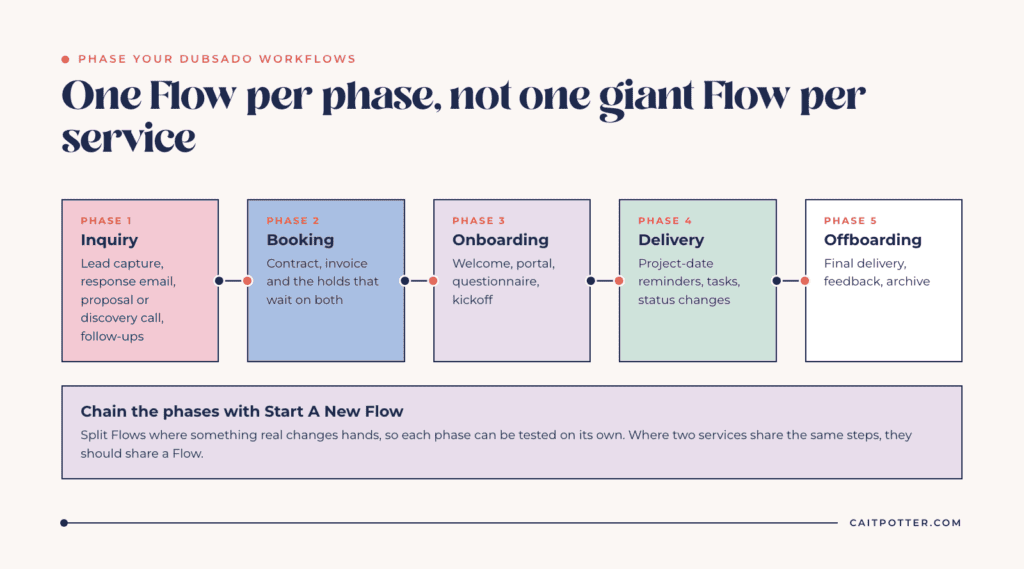
One giant Flow per service is hard to read and harder to fix. I split Flows at the points where something real changes hands:
- Inquiry: lead capture, response email, proposal or discovery call, follow-ups
- Booking: contract, invoice and the holds that wait on both
- Onboarding: welcome, portal, questionnaire, kickoff
- Delivery: project-date reminders, tasks, status changes
- Offboarding: final delivery, feedback, archive
Start A New Flow chains them, so each phase can be tested on its own. The opposite rule applies too. Where two services share the same steps, they should share a Flow, because every extra Flow is one more thing you have to maintain.
Example Dubsado workflows
These are patterns, not templates to copy. Your mapped process decides the details.
For a sense of scale, SugarPop Productions runs weddings, social events and corporate bookings on 11 workflows, with 91 of 107 steps automated.
Inquiry to booked
- Lead capture submitted, Flow starts.
- Send Email: response with next steps, 0 days after the Flow starts.
- Send Form: proposal, 1 day after the Flow starts.
- Send Email: follow-up, 3 days after the proposal is not completed.
- Update Project Status to an archived-lead status, 7 days after the proposal is not completed. For a fuller version, see my Dubsado abandoned cart workflows and the “not a good fit” sequence.
- Start A New Flow: onboarding, 0 days after the proposal is completed.
Paid session from a public scheduler
- Public scheduler with a required lead capture form and payment turned on.
- The lead capture’s default Flow starts on submission.
- Send Contract, 0 days after the primary invoice is paid in full.
- Create Task: final prep, using a project date trigger if the form maps the session date.
Don’t use appointment triggers here. The booking happened outside the Flow.
Onboarding after contract and deposit
- Hold Actions Until the contract is signed by the client.
- Hold Actions Until the first installment is paid.
- Update Project Status to Booked, then Activate Portal.
- Send Email: welcome with the portal link.
- Send Form: questionnaire, with a reminder 3 days after it’s not completed. More on that in automatic form reminders.
- Send Scheduler: kickoff call, after the questionnaire is completed.
Offboarding
- Create Task: deliver final files, after the project end date.
- Send Email: thank you and feedback request, after all previous actions are completed.
- Update Project Status to Complete.
- Archive Project, after every other step has run. Archiving pauses the project’s Flows.
Common mistakes
- Expecting template edits to reach live projects. They don’t. The Update projects button on a template pushes changes to every project using it, replaces edits made on individual projects, can fire new actions right away, and can’t be undone. Read what it changes before you click it.
- Deleting statuses and tags. If a status an action uses is deleted, the Flow pauses. If a tag is deleted, the action quietly doesn’t apply it, and nothing tells you. If you’re deciding between the two, here’s how I use project statuses vs tags.
- Typing smart fields by hand. Insert them from the smart field menu. Typed or pasted smart fields, and payment plan date smart fields in Flow emails, cause an “invalid smart field” error.
- Fixed dates left in templates. They don’t move on their own. Once the date passes, the action errors on every new project.
- Expecting a scheduler booking to set the project date. It doesn’t, so project date triggers just wait.
Test before a real client sees it
Create a test project with your own email address and run each Flow from start to finish. Use Force now to run actions scheduled weeks out. For a paid scheduler, Dubsado suggests a 100% discount code so you can book without paying, then recording a manual payment to fire the paid-in-full trigger.
Then check the Flows page. The Errored and Paused views show anything that needs you, and an errored action pauses its whole Flow. Fix the cause, click Retry, and resume the Flow if it’s still paused. In the progress bar, orange segments are skipped actions and red segments are failures.
When to get help with your workflows
If you’ve mapped your process and the build still feels like a second job, that’s what my Dubsado setup services are for. A done-for-you Dubsado setup means I map, build and test every Flow for you. In a done-with-you setup, we map it together and you build it with my course and support. Both start with mapping, so your Flows get built on a process that’s already decided.
Don’t have Dubsado yet? Code XOCAIT takes 30% off your first payment.
Frequently asked questions
Can a Dubsado workflow start another workflow?
Yes. The Start A New Flow action applies a different Flow template to the same project once the current Flow reaches that step. One Flow can’t trigger actions inside another, and a Flow can’t start itself.
Does editing a workflow template change active projects?
No. Each project runs its own copy of the Flow. To push template changes to running projects, use the Update projects button on the template. It replaces edits made on individual projects and can’t be undone.
Can Dubsado workflow tasks have due dates?
Not when the Flow creates them. The Create Task action has no due-date field, but you can add a due date to the task from the Tasks page or the project’s Tasks tab once it exists.
Why didn’t my Dubsado workflow send?
Check the Flow’s progress. A gray step is still waiting on its trigger. An earlier task may still be open, the Flow may be paused, an approval may be waiting, or the action may be held by your active hours. If the action is red, fix the error, click Retry, and resume the Flow.
Can a Dubsado workflow restart itself?
No. Start A New Flow has to start a different template. To repeat a process, apply the Flow again to a new project.
Are Flows available on the Dubsado Starter plan?
No. Flows are a Premier feature. On Starter, Flows doesn’t appear in the sidebar.
Ongoing COO-level support to maintain and refine your systems as the business grows so operations stay steady and decisions stop piling up on your plate.

Support
Custom Dubsado, Airtable, and Moxie systems designed for capacity, not survival. Built around how your business actually runs so growth does not create more chaos.

Systems
Map, audit, or optimize the system that is slowing your business down. Workflows, offers, tech stacks, or the process that keeps living in your head instead of your business.

Strategy
services
These are.
Busy isn't a business plan.


In this power-packed session, I show you how to connect Airtable + your CRM for smarter tracking, simplified workflows, and insights that actually move your business forward.
From Guesswork to Growth with Airtable


A step-by-step guide to setting up your new Dubsado account, area by area, so your trial ends with a system you can actually use.
21 Ways to Max Out Your Dubsado Free Trial

Hot Seat, Hot Takes, Hot Damn.

Free masterclasses that show you exactly how scalable businesses are built.




© 0000 Cait Potter Creative, LLC
Privacy Statement and Terms & Conditions