








To customize the Dubsado client portal you get one settings page: six fields and five colors. There is no theme editor, no CSS hook, and no way to reorder the portal’s own sections.
I would rather you know that before you spend a Saturday looking for the setting. There is still more room under that ceiling than most people use, and almost all of it comes from putting the design where the portal will show it instead of trying to style the portal itself.
If you have not set the portal up yet, start with my walkthrough of portal setup, branding and sharing and come back here.
What the settings page actually gives you
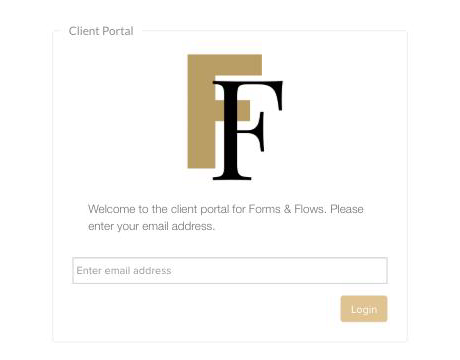
Settings, then Client portal, has three cards.
Content & Logo. A welcome message, a text field that renames the Projects tab, a portal logo and a toggle to show or hide it.
Banner & Colors. A full-width banner at 1800 x 200, a mobile banner at 700 x 400, a banner color, a banner font color, an item category header color and an item category header font color. The two color pickers for the banner only do anything when you have not uploaded a banner image.
Sharing. A sharing link and an embed code.
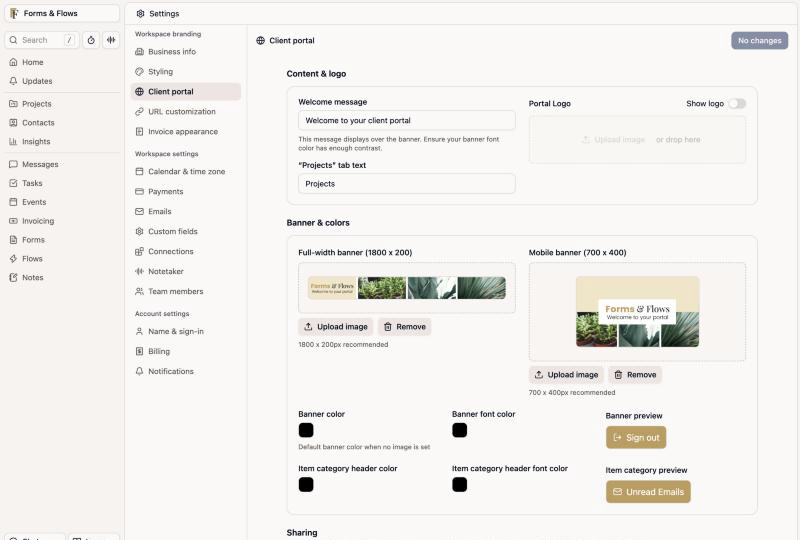
The login screen is not on this page. It uses the logo and brand color from Settings, then Styling, which means your sign-in screen and your portal can’t be branded separately.
The banner is your one real design surface
Everything visual you want the portal to say has to fit in a strip 1800 pixels wide and 200 tall, plus a 700 x 400 version that shows on anything under 768 pixels wide. Both accept PNG, JPEG and GIF.
GIF being an accepted format is what makes the banner worth more than a logo strip. Dubsado does not document whether an animated GIF animates in the banner or renders as a still frame, so upload one and look at it in a test client’s portal before you promise a client motion. If it plays, you have the only moving element the portal will ever give you, and it is worth using for something specific: a progress bar that you swap at each phase, a countdown to their launch date, a short loop of their own photos.
Two details about how the banner behaves will save you a redo. It stays anchored to the left, so the right side is what gets cut off on a narrow screen, which means anything that must be seen goes on the left. And if yours looks blurry or cropped, Dubsado suggests building it at 2700 x 300 instead of 1800 x 200. The help center gives the upload limit as 5MB in one article and 8MB in another, so build small and you never have to care which is current.
The per-client banner is the setting most people never find. Open a contact or a project, go to View details, and the Portal card has its own Banner image field. One client, one banner. For a small roster of high-touch clients, that is a genuinely personal portal: their name, their brand colors, a photo from their own shoot. It is tied to the client rather than the project, so a client with three projects gets one banner across all of them, and you can’t set a different banner per project.
Hide the welcome message in 2.0, or rewrite it in 3.0
In 3.0, clear the welcome message field and save and your clients see Dubsado’s default instead: “Your client portal with [your brand name].” There is no toggle on that settings page to turn it off.
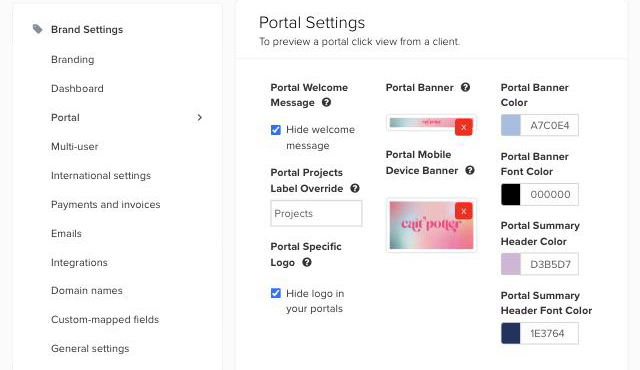
There is one in 2.0. Go to hello.dubsado.com, open Settings, then Portal, and the Portal Welcome Message field has a Hide welcome message checkbox sitting right under it. The same page also has Hide logo in your portals. It is the same account and the same portal, so the old settings page gives you a switch the new one does not. Tick it there and the message is gone from your clients’ portals.
Do this for anything else 3.0 won’t let you change, too. 2.0 is still live at hello.dubsado.com, it runs on the same account, and some of its settings pages still have controls that did not make it into the new ones.
If you would rather keep the message, make those words do a job. Most people write a greeting there. A greeting is wasted on a page someone has already logged into. Write the instruction they need instead, and change it as the project moves:
- “Everything for your brand build is under Projects. Start with the form marked 1.”
- “Your invoice is due Friday. Click Projects to pay it.”
- “We are in revisions. Your feedback form is open until the 14th.”
It is one field for your whole business, not per client, so it suits whatever phase most of your clients are in. If your work runs in cohorts or seasons, that is actually a usable amount of control.
The banner font color sets the color of this text, and of the Sign out link, so pick it against your banner image and not against white.
Rename the Projects tab
The Projects tab text field renames that tab to anything you want. “Projects” is correct and says nothing. Your clients do not think of themselves as a project.
What I use instead depends on the business: “Your Wedding” for a planner, “Your Build” for a systems client, “Your Shoot” for a photographer, “Your Renovation” for a designer. One field, and the portal stops sounding like software.
Names are your navigation
The client clicks the renamed tab, picks their project, and scrolls to Documents, where every form, contract, proposal, PDF and external link you have applied to the portal shows up by its name. Those names are the only menu they get, and you control all of them.
So number them. “1. Read this first”, “2. Design questionnaire”, “3. Your proposal”, “4. Timeline and next steps.” A client opening that list knows the order without an email explaining it. Rename the forms on the project, not just the templates, because the project copy is what they see.
The same applies to schedulers and invoices. “Kickoff call, 60 minutes” beats “Scheduler.” “Final payment, due at delivery” beats “Invoice 2.”
One more: password-protected forms are only accessible through the client portal. If you want clients in the portal instead of hunting through email for a link, password-protect the form that matters most and the portal becomes the only way in.
Put the design in the forms, because forms take code
The portal takes no code, and forms do, which is the whole workaround. On a form you get a Custom CSS editor at the Styling tab, and an HTML Block element on questionnaires, proposals and lead captures. HTML blocks are not available on contracts or sub-agreements for security reasons, and they need a paid plan, so they are disabled during a free trial. The script tag is supported in an HTML block, though JavaScript will not run while you are editing in the form builder. Dubsado’s Customer Care team does not support forms with custom code, and they do not guarantee future updates won’t break it, which is the real cost of coded forms, and a client who will own this after you hand it over needs to hear it from you before you build it.
So the portal is a shell, and the forms inside it are where the brand experience happens. Build a questionnaire that looks like their website, apply it to the portal, and the client’s experience of the portal is mostly your form. If code is off the table, my code-free form techniques get most of the way there with containers, columns, background images with a color wash, and invisible tables.
Two of those techniques matter more here than anywhere else. Use GIFs exported from Canva as images inside a form for motion the portal itself won’t give you. And build every form in the project from the same header, footer and section headings, so a client clicking between three forms in the portal sees one consistent design instead of three.
External links point at what Dubsado can’t do
When the portal genuinely cannot do the job, send them somewhere that can, from inside the portal.
Open the project, go to the Forms tab, click the plus button, then click One-time link under the OR divider. Give it a Title and a URL, click Create, then Share, then Apply to portal. It shows under Documents with whatever title you typed.
That is how a gallery, a Dropbox folder, a Loom walkthrough, a Notion board or a fully branded page on your own site gets into the portal. The title is the whole label, so write it as an instruction: “Download your final files”, “Watch the 4-minute walkthrough”, “Your style guide”.
Links go on individual projects only, never on the portal home page, and deleting one removes it from both the project and the portal.
A task board is the other way to get something of your own into the portal. Set a board’s visibility to Client and it shows up there, which gives the client a checklist of what you are waiting on from them.
Let a Flow open and close the portal
Two of the fifteen Flow actions are Activate Portal and Deactivate Portal, and client portals are deactivated by default for every client.
Use them. Activate the portal at the point in your Flow where there is something in it worth seeing, not at inquiry, and deactivate it at offboarding after you have told them to download their files. A client who logs in the week their proposal and their kickoff scheduler arrive sees a portal with a job. A client who gets the link three weeks early logs into an empty page and does not go back.
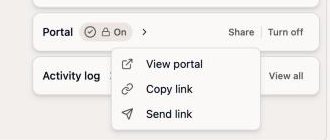
The embed code on the Sharing card drops the portal login into your own site the same way you would embed a lead capture form. Put it on a page called Client Login, on your domain, styled like the rest of your site, and your clients sign in from a page you control instead of a Dubsado URL. The public link requires the client to have a password set. The client-specific link, under Share in the Portal card of a project or contact, signs them in with just their email address.
Letting clients cancel their own booking
Someone in a Dubsado group asked whether a client could cancel in the portal, stop the workflow, and see refund or rebooking options based on how far out their date is.
Dubsado does the first two. It will not do the third. Forms have no conditional logic, so no question shows or hides based on an answer, and nothing on a form compares a date to today or does arithmetic. Flows have fifteen actions and none of them is a branch. Hold Actions Until is a checkpoint, and chaining several of them gives you an “all of the above” condition instead of an either/or. Project date triggers fire one action at an offset before or after a project date. Nothing in Dubsado measures how close a date is and picks a different path because of it.
So you decide the refund tier. Everything around that decision can run on its own.
Put the tiers in the contract. Spell out the dates and the amounts there and on a page on your site, so the policy is agreed to before anyone needs it.
Send the cancellation form at the start of the project. A questionnaire called “Cancel or reschedule your date”, sent as a Flow action early and applied to the portal, sits under Documents for the whole project. Ask four things: the date they booked, whether they want to cancel, reschedule or talk to you, their preferred new dates, and a free response. You read the answers, so none of it needs logic.
Stop the workflow when they submit it. Use the “after a form is completed” trigger pointed at that questionnaire, with one action under it: Pause Flow. The flow stops and runs nothing else until you resume it. Two things to get right: the trigger only offers forms that are already actions earlier in the same flow, and a questionnaire counts as completed only when the client submits it, so a saved draft does nothing.
Reply before you have decided anything. A Send Email action after the pause, restating the policy and saying you will confirm which tier applies within one business day. The client gets an answer in seconds instead of waiting to hear from you.
Put it on your task list. A Create Task action, so the cancellation is on your list instead of in your inbox.
Refund and rebook yourself. Refunds happen on the invoice, under the Transactions tab, with an amount you type. Processing fees are not returned. A payment taken outside Dubsado Payments can only be logged as a refund rather than actually refunded, and a Dubsado Payments refund can’t be edited or deleted once it is submitted. Issuing one does not stop future autopay charges, so cancel those too. To rebook, a Send Scheduler action lets them pick a new date.
If you want the client’s own choice to route them into different Flows, there is exactly one mechanism: the Flows element on a lead capture form, where each dropdown option maps to a different flow. It is one element per form, lead captures only, and Premier only. I don’t use it for this, because every lead capture submission creates a new project, even when the contact already exists and already has a project with you. You get routing and a stray project to clean up for every cancellation.
Three scheduler settings matter here. Clients can already cancel appointments from the portal, from the calendar event, and from any confirmation or reminder email that includes a cancellation link. Rescheduling is on by default, and the toggle to turn it off is Prevent clients from rescheduling, at the scheduler’s Advanced tab under Limits. And Dubsado has no cancellation notice window: Minimum notice, on the Basic tab, governs how far ahead someone must book, not how late they can cancel. Your notice period is a contract term you enforce yourself.
What I would stop trying to do
- Styling the portal with CSS. Custom code is not available for it.
- Editing the portal home page. It can’t be edited.
- Hiding the welcome message from the 3.0 settings page. Use the checkbox in 2.0, or rewrite it.
- Branding the login screen separately from the rest of your Dubsado. It inherits Settings, then Styling.
- A different banner per project. Portals are tied to a client, not a project.
- Reordering or relabeling the portal’s own sections. Only the Projects tab label changes.
- Putting an external link on the portal home page. Links are per project.
None of that is a reason to skip the portal. A portal with a banner built on purpose, a welcome message that gives one instruction, a renamed tab, forms named in order and a Flow that opens it at the right moment is a better client experience than most people’s, and it took an afternoon. The portal was never going to be the whole client experience on its own. It is the way in, and the forms you put in it are what the client spends their time on.
If you would rather have this built and handed to you, that is what a done-for-you Dubsado setup is.
Frequently asked questions
Can you use HTML or CSS on the Dubsado client portal?
No. Dubsado’s help center says custom code is not available for the client portal. Forms are different: questionnaires, proposals and lead captures have a Custom CSS editor and an HTML Block element, and that is where any coded design has to go. HTML blocks need a paid plan and are not available on contracts or sub-agreements.
Can the Dubsado portal banner be an animated GIF?
GIF is one of the accepted file types for both the banner and the portal logo, alongside PNG and JPEG. Dubsado does not say whether animation plays, so upload one and check it in a test client’s portal before you build anything around it.
Can you hide the Dubsado portal welcome message?
Yes, from the 2.0 settings page. Go to hello.dubsado.com, then Settings, then Portal, and tick Hide welcome message under the Portal Welcome Message field. It is the same portal your clients already use, so the message is gone. The 3.0 settings page has no equivalent toggle, and clearing the field there makes Dubsado show its default message instead.
Can a client cancel their own booking in Dubsado and get an automatic refund?
They can cancel an appointment from the portal, the calendar event, or any confirmation or reminder email that includes a cancellation link. The refund is not automatic. Refunds are issued by you on the invoice’s Transactions tab with an amount you enter, and Dubsado has no conditional logic that would pick a refund tier based on how close the date is.
Can you give each client their own portal banner?
Yes. The Portal card on a contact or project has its own Banner image field. It is set per client rather than per project, so a client with several projects sees the same banner on all of them.
Ongoing COO-level support to maintain and refine your systems as the business grows so operations stay steady and decisions stop piling up on your plate.

Support
Custom Dubsado, Airtable, and Moxie systems designed for capacity, not survival. Built around how your business actually runs so growth does not create more chaos.

Systems
Map, audit, or optimize the system that is slowing your business down. Workflows, offers, tech stacks, or the process that keeps living in your head instead of your business.

Strategy
services
These are.
Busy isn't a business plan.


In this power-packed session, I show you how to connect Airtable + your CRM for smarter tracking, simplified workflows, and insights that actually move your business forward.
From Guesswork to Growth with Airtable


A step-by-step guide to setting up your new Dubsado account, area by area, so your trial ends with a system you can actually use.
21 Ways to Max Out Your Dubsado Free Trial

Hot Seat, Hot Takes, Hot Damn.

Free masterclasses that show you exactly how scalable businesses are built.




© 0000 Cait Potter Creative, LLC
Privacy Statement and Terms & Conditions